A Bluetooth virtual COM port — vCOM — is a Windows serial port whose bytes are carried over a Bluetooth
Serial Port Profile connection instead of a physical cable. The application that opens the port cannot tell the
difference: it gets a port number, a baud rate, and a stream of bytes, exactly like a real UART. The
Bluetooth Framework exposes the entire lifecycle of these ports through
wclBluetoothRadio, so the developer never has to touch the Windows Bluetooth driver, the registry, or
the system control panel.
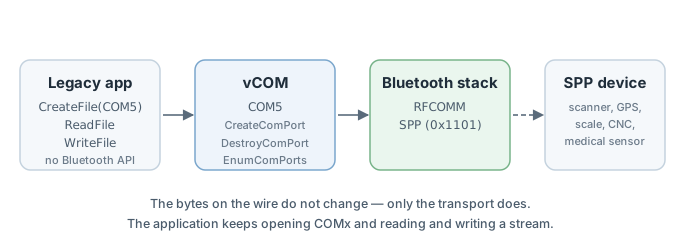
Everything on the left side of the diagram is the application's world: a COM port number, a set of baud-rate settings, and a blocking or overlapped read. Everything on the right side is the Bluetooth world: RFCOMM channels, an SPP service record, and a wireless link. The vCOM driver sits between them and translates one into the other, one byte at a time.
This article covers the four members that the Bluetooth Framework exposes for
this — ComPorts, EnumComPorts, CreateComPort, and DestroyComPort
— using the BluetoothManager sample application as the source of the code examples.
Why use vCOM
A modern application that is being written against the Bluetooth Framework does not need vCOM: it can open an RFCOMM connection directly, using the classes described in the Classic Bluetooth guide, and get a clean byte stream with full control over the connection lifecycle. vCOM exists for a different audience, and its reason for existing is worth stating plainly.
Legacy applications
Many applications that talk to Bluetooth-enabled hardware were written before Bluetooth existed. A barcode scanner, a weighing scale, a GPS receiver, a medical sensor, a CNC controller, a label printer — each of these devices was originally a serial device, attached to a physical RS-232 cable on a specific COM port. The application opens that port, configures baud rate and flow control, and then reads and writes a stream. None of that code knows that Bluetooth exists, and none of it needs to.
With vCOM, the same application continues to work unchanged. The virtual port appears in Windows as an ordinary serial
port with a number the application can be configured to use. From the application's point of view, the cable has
simply become wireless. There is no DLL to swap, no API to call, no build to reproduce — the binary that ran against
COM1 yesterday runs against COM5 today, and the only visible difference is the port number.
Existing legacy code
Even when the application is being actively developed, it often contains a well-tested serial transport layer — a parser, a state machine, a set of timing assumptions — that took years to get right. Rewriting that layer on top of a Bluetooth API would mean re-testing everything that goes through it: the framing, the retries, the flow-control rules, the timeouts, the behaviour at every possible buffer boundary. With vCOM, that code stays exactly as it is, and only the transport underneath changes from a UART to a Bluetooth link.
This is the second reason vCOM survives in modern codebases: it preserves the shape of the application. A serial
application is typically synchronous — it calls ReadFile and blocks until data arrives, or it sets up
overlapped I/O with a dedicated thread. The Windows serial driver, and the Bluetooth stack below it, handle the
buffering, so the application's threading model does not have to change.
Cable replacement
This is the use case vCOM was designed for. The Serial Port Profile exists precisely to replace an
RS-232 cable with a wireless link, and vCOM is the Windows-visible form of that replacement. Any device that speaks
SPP — UUID 0x1101 — can be reached through a vCOM port: barcode scanners, GPS receivers, industrial
controllers, point-of-sale terminals, medical instruments, and countless other devices whose firmware has not changed
since the 1990s.
Devices that do not speak SPP are not reachable through vCOM. BLE GATT services, audio profiles, object exchange, and the other profiles described in the Bluetooth Classic profiles article all need the framework's dedicated classes — vCOM is specific to SPP.
Enumerating vCOM ports
A vCOM port is bound to a specific pair of values: a Bluetooth device address and a service UUID. The same device can expose more than one SPP service, and each of them can have its own virtual port; conversely, a single device with a single SPP service can have exactly one port at a time. Enumerating the current ports is therefore not just "list the connected devices" — it is "list the (device, service) pairs that Windows currently has a port for".
The wclBluetoothRadio class exposes two ways to get the current list. The ComPorts property
returns the ports that the framework itself is currently tracking in this session. The EnumComPorts method
returns the full set, including ports that were created in a previous session and still exist in the system. The
difference matters when the application starts up: ComPorts is empty until something has been created in
the current process, while EnumComPorts reports everything the system knows about.
In the BluetoothManager sample application, the Enum preinstalled checkbox chooses between the two.
When it is checked, EnumComPorts is used; otherwise the faster ComPorts property is read
directly.
procedure TfmMain.RefreshVComs;
var
  i: Integer;
  Item: TListItem;
  Radio: TwclBluetoothRadio;
  Ports: TwclVirtualComPorts;
  Port: TwclVirtualComPort;
  Res: Integer;
begin
  ClearComPorts;

  Item := lvRadios.Selected;
  Radio := TwclBluetoothRadio(Item.Data);

  if cbEnumPreinstalled.Checked then
    Res := Radio.EnumComPorts(Ports)
  else begin
    Ports := Radio.ComPorts;
    Res := WCL_E_SUCCESS;
  end;

  if Res <> WCL_E_SUCCESS then
    ShowMessage('Error enumerating vCOMs: 0x' + IntToHex(Res, 8))

  else begin
    for i := 0 to Length(Ports) - 1 do begin
      Port := Ports[i];

      Item := lvVComs.Items.Add;
      Item.Caption := Radio.ApiName;
      Item.SubItems.Add(IntToHex(Port.Address, 12));
      Item.SubItems.Add(GUIDToString(Port.Service));
      Item.SubItems.Add(IntToStr(Port.Number));

      Item.Data := Radio;
    end;
  end;
end;
void __fastcall TfmMain::RefreshVComs()
{
ClearComPorts();
TListItem* Item = lvRadios->Selected;
TwclBluetoothRadio* Radio = (TwclBluetoothRadio*)(Item->Data);
int Res;
TwclVirtualComPorts Ports;
if (cbEnumPreinstalled->Checked)
Res = Radio->EnumComPorts(Ports);
else
{
Ports = Radio->ComPorts;
Res = WCL_E_SUCCESS;
}
if (Res != WCL_E_SUCCESS)
ShowMessage("Error enumerating vCOMs: 0x" + IntToHex(Res, 8));
else
{
for (int i = 0; i < Radio->ComPorts.Length; i++)
{
TwclVirtualComPort Port = Ports[i];
Item = lvVComs->Items->Add();
Item->Caption = Radio->ApiName;
Item->SubItems->Add(IntToHex(Port.Address, 12));
Item->SubItems->Add(Sysutils::GUIDToString(Port.Service));
Item->SubItems->Add(IntToStr(Port.Number));
Item->Data = Radio;
}
}
}private void RefreshVComs()
{
ClearComPorts();
ListViewItem Item = lvRadios.SelectedItems[0];
wclBluetoothRadio Radio = (wclBluetoothRadio)Item.Tag;
Int32 Res;
wclVirtualComPort[] Ports;
if (cbEnumPreinstalled.Checked)
Res = Radio.EnumComPorts(out Ports);
else
{
Ports = Radio.ComPorts;
Res = wclErrors.WCL_E_SUCCESS;
}
if (Res != wclErrors.WCL_E_SUCCESS)
MessageBox.Show("Error enumerating vCOMs: 0x" + Res.ToString("X8"));
else
{
if (Ports != null && Ports.Length > 0)
{
for (int i = 0; i < Ports.Length; i++)
{
wclVirtualComPort Port = Ports[i];
Item = lvComPorts.Items.Add(Radio.ApiName);
Item.SubItems.Add(Port.Address.ToString("X12"));
Item.SubItems.Add(Port.Service.ToString());
Item.SubItems.Add(Port.Number.ToString());
Item.Tag = Radio;
}
}
}
}Private Sub RefreshVComs()
ClearComPorts()
Dim Item As ListViewItem = lvRadios.SelectedItems(0)
Dim Radio As wclBluetoothRadio = CType(Item.Tag, wclBluetoothRadio)
Dim Res As Int32
Dim Ports As wclVirtualComPort() = Nothing
If cbEnumPreinstalled.Checked Then
Res = Radio.EnumComPorts(Ports)
Else
Ports = Radio.ComPorts
Res = wclErrors.WCL_E_SUCCESS
End If
If Res <> wclErrors.WCL_E_SUCCESS Then
MessageBox.Show("Error enumerating vCOMs: 0x" + Res.ToString("X8"))
Else
If Ports IsNot Nothing AndAlso Ports.Length > 0 Then
For i As Integer = 0 To Ports.Length - 1
Dim Port As wclVirtualComPort = Ports(i)
Item = lvComPorts.Items.Add(Radio.ApiName)
Item.SubItems.Add(Port.Address.ToString("X12"))
Item.SubItems.Add(Port.Service.ToString())
Item.SubItems.Add(Port.Number.ToString())
Item.Tag = Radio
Next i
End If
End If
End Subvoid CBluetoothManagerDlg::RefreshVComs()
{
ClearComPorts();
POSITION Pos = lvRadios.GetFirstSelectedItemPosition();
if (Pos != NULL)
{
int Item = lvRadios.GetNextSelectedItem(Pos);
CwclBluetoothRadio* Radio = (CwclBluetoothRadio*)lvRadios.GetItemData(Item);
wclVirtualComPorts Ports;
int Res;
if (cbEnumPreinstalled.GetCheck())
Res = Radio->EnumComPorts(Ports);
else
{
Ports = Radio->ComPorts;
Res = WCL_E_SUCCESS;
}
if (Res != WCL_E_SUCCESS)
AfxMessageBox(_T("Error enumerating vCOMs: 0x") + IntToHex(Res));
else
{
int n = 0;
for (wclVirtualComPorts::iterator i = Ports.begin(); i != Ports.end(); i++)
{
wclVirtualComPort Port = (*i);
LPOLESTR Guid;
StringFromCLSID(Port.Service, &Guid);
lvComPorts.InsertItem(n, Radio->ApiName.c_str());
lvComPorts.SetItemText(n, 1, IntToHex(Port.Address));
lvComPorts.SetItemText(n, 2, Guid);
lvComPorts.SetItemText(n, 3, IntToStr(Port.Number));
lvComPorts.SetItemData(n, (DWORD_PTR)Radio);
n++;
}
}
}
}Creating a vCOM port
To create a vCOM port, the application needs two things: the Bluetooth address of the target device, and the UUID of
the SPP service on that device. Both come from the SDP enumeration described in the
Bluetooth Framework article — a device that supports SPP advertises the service
with UUID 0x1101, along with the RFCOMM channel it expects to use. In the sample application, the user
first selects a device from the Devices list, then selects the SPP service from the Services list, and
then clicks Create vCOM.
Once those values are known, CreateComPort does the rest: it asks Windows to register a new virtual serial
port, binds it to the given device and service, and returns the Number assigned to the port. From that
moment on, the port is visible to the whole system — any application can open it by number, including the legacy
application that motivated the whole exercise.
procedure TfmMain.btCreateVCOMClick(Sender: TObject);
var
  Item: TListItem;
  Radio: TwclBluetoothRadio;
  Address: Int64;
  Res: Integer;
  Service: TGUID;
  Number: Word;
begin
  if lvDevices.Selected = nil then
    MessageDlg('Select device', mtWarning, [mbOK], 0)

  else begin
    if lvServices.Selected = nil then
      MessageDlg('Select service', mtWarning, [mbOK], 0)

    else begin
      Item := lvDevices.Selected;
      Radio := TwclBluetoothRadio(Item.Data);
      Address := StrToInt64('$' + Item.SubItems[0]);
      Service := StringToGUID(lvServices.Selected.SubItems[2]);

      Res := Radio.CreateComPort(Address, Service, Number);
      if Res <> WCL_E_SUCCESS then
        ShowError(Res)

      else begin
        TraceEvent(Radio, 'Create vCOM', 'Number', IntToStr(Number));

        RefreshVComs;
      end;
    end;
  end;
end;
void __fastcall TfmMain::btCreateVCOMClick(TObject *Sender)
{
if (lvDevices->Selected == NULL)
MessageDlg("Select device", mtWarning, TMsgDlgButtons() << mbOK, 0);
else
if (lvServices->Selected == NULL)
MessageDlg("Select service", mtWarning, TMsgDlgButtons() << mbOK, 0);
else
{
TListItem* Item = lvDevices->Selected;
TwclBluetoothRadio* Radio = (TwclBluetoothRadio*)(Item->Data);
__int64 Address = StrToInt64("$" + Item->SubItems->Strings[0]);
GUID Service = Sysutils::StringToGUID(lvServices->Selected->SubItems->Strings[2]);
unsigned short Number;
int Res = Radio->CreateComPort(Address, Service, Number);
if (Res != WCL_E_SUCCESS)
ShowError(Res);
else
{
TraceEvent(Radio, "Create vCOM", "Number", IntToStr(Number));
RefreshVComs();
}
}
}private void btCreateVCOM_Click(object sender, EventArgs e)
{
if (lvDevices.SelectedItems.Count == 0)
MessageBox.Show("Select device", "Warning", MessageBoxButtons.OK, MessageBoxIcon.Warning);
else
{
if (lvServices.SelectedItems.Count == 0)
MessageBox.Show("Select service", "Warning", MessageBoxButtons.OK, MessageBoxIcon.Warning);
else
{
ListViewItem Item = lvDevices.SelectedItems[0];
wclBluetoothRadio Radio = (wclBluetoothRadio)Item.Tag;
Int64 Address = Convert.ToInt64(Item.SubItems[1].Text, 16);
Guid Service = new Guid(lvServices.SelectedItems[0].SubItems[3].Text);
UInt16 Number;
Int32 Res = Radio.CreateComPort(Address, Service, out Number);
if (Res != wclErrors.WCL_E_SUCCESS)
ShowError(Res);
else
{
TraceEvent(Radio, "Create vCOM", "Number", Number.ToString());
RefreshVComs();
}
}
}
}Private Sub btCreateVCOM_Click(ByVal sender As System.Object, ByVal e As System.EventArgs) Handles btCreateVCOM.Click
If lvDevices.SelectedItems.Count = 0 Then
MessageBox.Show("Select device", "Warning", MessageBoxButtons.OK, MessageBoxIcon.Warning)
Else
If lvServices.SelectedItems.Count = 0 Then
MessageBox.Show("Select service", "Warning", MessageBoxButtons.OK, MessageBoxIcon.Warning)
Else
Dim Item As ListViewItem = lvDevices.SelectedItems(0)
Dim Radio As wclBluetoothRadio = CType(Item.Tag, wclBluetoothRadio)
Dim Address As Int64 = Convert.ToInt64(Item.SubItems(1).Text, 16)
Dim Service As Guid = New Guid(lvServices.SelectedItems(0).SubItems(3).Text)
Dim Number As UInt16
Dim Res As Int32 = Radio.CreateComPort(Address, Service, Number)
If Res <> wclErrors.WCL_E_SUCCESS Then
ShowError(Res)
Else
TraceEvent(Radio, "Create vCOM", "Number", Number.ToString())
RefreshVComs()
End If
End If
End If
End Subvoid CBluetoothManagerDlg::OnBnClickedButtonCreatePort()
{
POSITION DevPos = lvDevices.GetFirstSelectedItemPosition();
if (DevPos == NULL)
AfxMessageBox(_T("Select device"));
else
{
POSITION SrvPos = lvServices.GetFirstSelectedItemPosition();
if (SrvPos == NULL)
AfxMessageBox(_T("Select service"));
else
{
int DevItem = lvDevices.GetNextSelectedItem(DevPos);
CwclBluetoothRadio* Radio = (CwclBluetoothRadio*)lvDevices.GetItemData(DevItem);
__int64 Address = StrToInt64(lvDevices.GetItemText(DevItem, 1));
int SrvItem = lvServices.GetNextSelectedItem(SrvPos);
CString s = lvServices.GetItemText(SrvItem, 3);
GUID Service;
CLSIDFromString((LPOLESTR)s.GetBuffer(), &Service);
unsigned short Number;
int Res = Radio->CreateComPort(Address, Service, Number);
if (Res != WCL_E_SUCCESS)
ShowError(Res);
else
{
TraceEvent(Radio, _T("Create vCOM"), _T("Number"), IntToStr(Number));
RefreshVComs();
}
}
}
}Destroying a vCOM port
A vCOM port is removed by calling DestroyComPort with the port number — not with the device address.
This matters: a device may expose several services, and each of them may have its own port, so the device address is
not enough to identify which port to remove. The Number returned by CreateComPort, or the
Number field of an entry returned by EnumComPorts or ComPorts, is the only
unambiguous identifier.
Destroying a vCOM port does not affect the device's pairing state and does not disconnect any active connection. It only removes the Windows-side serial port; the Bluetooth link, if one is up, stays up, and the device remains paired for future use. The legacy application that was using the port will see the port disappear, exactly as if a USB-to-serial adapter had been unplugged.
procedure TfmMain.btDestroyVCOMClick(Sender: TObject);
var
  Item: TListItem;
  Radio: TwclBluetoothRadio;
  Number: Word;
  Res: Integer;
begin
  if lvVComs.Selected = nil then
    MessageDlg('Select vCOM', mtWarning, [mbOK], 0)

  else begin
    Item := lvVComs.Selected;
    Radio := TwclBluetoothRadio(Item.Data);
    Number := StrToInt(Item.SubItems[2]);

    Res := Radio.DestroyComPort(Number);
    if Res <> WCL_E_SUCCESS then
      ShowError(Res)

    else begin
      TraceEvent(Radio, 'Destroy vCOM', 'Number', IntToStr(Number));

      RefreshVComs;
    end;
  end;
end;
void __fastcall TfmMain::btDestroyVCOMClick(TObject *Sender)
{
if (lvVComs->Selected == NULL)
MessageDlg("Select vCOM", mtWarning, TMsgDlgButtons() << mbOK, 0);
else
{
TListItem* Item = lvVComs->Selected;
TwclBluetoothRadio* Radio = (TwclBluetoothRadio*)(Item->Data);
unsigned short Number = StrToInt(Item->SubItems->Strings[2]);
int Res = Radio->DestroyComPort(Number);
if (Res != WCL_E_SUCCESS)
ShowError(Res);
else
{
TraceEvent(Radio, "Destroy vCOM", "Number", IntToStr(Number));
RefreshVComs();
}
}
}private void btDestroyVCOM_Click(object sender, EventArgs e)
{
if (lvComPorts.SelectedItems.Count == 0)
MessageBox.Show("Select vCOM", "Warning", MessageBoxButtons.OK, MessageBoxIcon.Warning);
else
{
ListViewItem Item = lvComPorts.SelectedItems[0];
wclBluetoothRadio Radio = (wclBluetoothRadio)Item.Tag;
UInt16 Number = Convert.ToUInt16(Item.SubItems[3].Text);
Int32 Res = Radio.DestroyComPort(Number);
if (Res != wclErrors.WCL_E_SUCCESS)
ShowError(Res);
else
{
TraceEvent(Radio, "Destroy vCOM", "Number", Number.ToString());
RefreshVComs();
}
}
}Private Sub btDestroyVCOM_Click(ByVal sender As System.Object, ByVal e As System.EventArgs) Handles btDestroyVCOM.Click
If lvComPorts.SelectedItems.Count = 0 Then
MessageBox.Show("Select vCOM", "Warning", MessageBoxButtons.OK, MessageBoxIcon.Warning)
Else
Dim Item As ListViewItem = lvComPorts.SelectedItems(0)
Dim Radio As wclBluetoothRadio = CType(Item.Tag, wclBluetoothRadio)
Dim Number As UInt16 = Convert.ToUInt16(Item.SubItems(3).Text)
Dim Res As Int32 = Radio.DestroyComPort(Number)
If Res <> wclErrors.WCL_E_SUCCESS Then
ShowError(Res)
Else
TraceEvent(Radio, "Destroy vCOM", "Number", Number.ToString())
RefreshVComs()
End If
End If
End Subvoid CBluetoothManagerDlg::OnBnClickedButtonDestroyCom()
{
POSITION Pos = lvComPorts.GetFirstSelectedItemPosition();
if (Pos == NULL)
AfxMessageBox(_T("Select vCOM"));
else
{
int Item = lvComPorts.GetNextSelectedItem(Pos);
CwclBluetoothRadio* Radio = (CwclBluetoothRadio*)lvComPorts.GetItemData(Item);
unsigned short Number = LOWORD(StrToInt(lvComPorts.GetItemText(Item, 3)));
int Res = Radio->DestroyComPort(Number);
if (Res != WCL_E_SUCCESS)
ShowError(Res);
else
{
TraceEvent(Radio, _T("Destroy vCOM"), _T("Number"), IntToStr(Number));
RefreshVComs();
}
}
}The vCOM data model
Every entry in the list returned by EnumComPorts and by the ComPorts property is a
TwclVirtualComPort structure (or a wclVirtualComPort in .NET). Three fields describe the
binding:
- Address — the Bluetooth device address, as a 48-bit integer. This is the same value that
EnumRemoteServicesuses when listing the device's SDP records, and the same value thatRemotePairandRemoteDisconnecttake. - Service — the UUID of the SPP service on that device. For SPP this is
0x1101, but the field is a full GUID because the same binding mechanism also works for vendor-specific serial services. - Number — the Windows COM port number, from 1 to 255. This is the value the application passes to
CreateFile, and the value thatDestroyComPorttakes.
The BluetoothManager sample application displays these in four columns: the driver name (from
Radio.ApiName), the address, the service UUID, and the port number. The number column is the one used by
DestroyComPort; the address and the UUID are kept visible so the operator can tell which device a port
belongs to when several devices are in range.
Practical notes
- vCOM is Windows-specific. The framework's vCOM support relies on the Microsoft Bluetooth stack and its virtual serial port driver. On other platforms the same use case is handled through RFCOMM sockets directly, using the classes described in the Classic Bluetooth guide.
- vCOM relies on SPP. If the remote device does not advertise SPP, creating a vCOM port has nothing to connect to. For BLE devices, use the GATT classes; for audio, use the audio classes described in the Bluetooth audio article; for OBEX, use the classes described in the Object Exchange guide.
- Pairing is strongly recommended. A vCOM port can be created for an unpaired device in some
configurations, but every new connection will then trigger a fresh authentication prompt — exactly the user-visible
interruption that vCOM applications were designed to avoid. Pair the device first, with
RemotePair, and the port will reconnect silently afterwards. - One port per (device, service) pair. Creating a second vCOM for the same pair while one already exists will fail with an error. The existing port should be reused, or destroyed first and then recreated.
- Cleanup is important. A vCOM port survives the process that created it. If the application is
uninstalled or moved, the port remains in the system and has to be removed explicitly with
DestroyComPort. Applications that create vCOM ports should therefore track the numbers they created and remove them on shutdown. - Error codes are the standard WCL set. Every
CreateComPortandDestroyComPortcall returnsWCL_E_SUCCESSon success and a specific error code otherwise — the same pattern used throughout the sample application and described in the error codes reference.
Frequently asked questions
- What is a Bluetooth virtual COM port?
- A Bluetooth virtual COM port (vCOM) is a Windows serial port that the Bluetooth
Framework binds to a paired Bluetooth device and its Serial Port Profile (SPP) service. The application opens
COMxand reads or writes a byte stream exactly as if a serial cable were attached; the framework routes those bytes over RFCOMM to the remote SPP device. - Why would I use vCOM instead of the Bluetooth API directly?
- vCOM exists for legacy applications and for existing legacy code. Many applications — industrial, medical, retail,
logistics — were written for a physical RS-232 port and cannot be rewritten. A virtual COM port lets the same binary
keep working: it opens a
COMxport, reads and writes a stream, and never needs to know that the transport is now Bluetooth. Existing serial parsers, state machines, and timing assumptions stay untouched. - Does creating a vCOM port pair the device?
- No.
CreateComPortonly registers a virtual serial port in Windows and binds it to the given device address and SPP service UUID. Pairing is a separate operation that is performed withRemotePairor through the Windows Bluetooth UI. - Which profile does vCOM rely on?
- vCOM relies on the Serial Port Profile (SPP), UUID
0x1101, running over RFCOMM. Devices that do not advertise SPP — BLE GATT services, audio profiles, object exchange — cannot be reached through a vCOM port and should use the framework's dedicated classes instead. - Can I use vCOM on non-Windows platforms?
- No. vCOM is a Windows-specific feature that depends on the Microsoft Bluetooth stack and its virtual serial port driver. On other platforms the same use case is handled through RFCOMM sockets directly.
- How do I remove a vCOM port?
- Call
DestroyComPortwith the port number returned byCreateComPort, or with theNumberfield of an entry returned byEnumComPortsorComPorts. The device address is not enough, because the same device may expose more than one SPP service, each with its own port.