OBEX (Object Exchange) is a lightweight, flexible protocol designed for transferring objects — files, contacts, images, and other data — between devices. Initially developed by the Infrared Data Association (IrDA) for infrared communication, OBEX was later adapted for Bluetooth, significantly enhancing its versatility in modern wireless communication.
OBEX is the transport for several Bluetooth Classic profiles. For a broader view of how OPP, FTP, PBAP, and MAP relate to SPP, HFP, A2DP, AVRCP, and HID, see the Bluetooth Classic profiles overview.
OBEX was introduced in the 1990s by the Infrared Data Association (IrDA) to facilitate the exchange of data objects over infrared (IR) links. This allowed devices to share small objects like contacts, calendar entries, and files in close proximity.
As Bluetooth technology emerged and became the dominant short-range wireless communication standard, OBEX was integrated into Bluetooth's core protocols. Bluetooth offered improved range and reliability compared to infrared, which allowed OBEX to be more widely used for data exchange between various devices, including smartphones, computers, printers, and other peripherals.
In the early days, OBEX was used over infrared communication links to transfer small data objects between devices. Typically, devices needed to be in close proximity (within a few centimeters) for the infrared link to work. OBEX facilitated the transfer of vCards (electronic business cards), calendar events, and small files, enabling basic data-sharing capabilities.
Two devices established an IR connection, OBEX allowed one device to send objects to the other. OBEX defined how these objects should be packaged, addressed, and transmitted. The simplicity of OBEX and the short-range nature of infrared communication made this ideal for quick, ad-hoc data exchanges.
OBEX and Bluetooth
With the rise of Bluetooth as a major wireless communication standard, OBEX became central to data exchange in Bluetooth-enabled devices. The integration of OBEX into Bluetooth allowed for a broader range of use cases, from simple file transfers to more complex device interactions.
OBEX operates above the RFCOMM (Radio Frequency Communication) protocol in the Bluetooth protocol stack. RFCOMM is a communication protocol that emulates a serial cable connection over Bluetooth, providing a reliable and straightforward data link between devices. It manages tasks like packetization, flow control, and error checking.
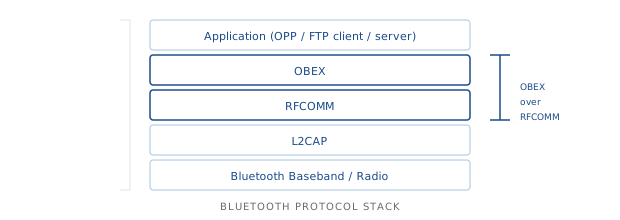
RFCOMM is responsible for setting up and maintaining a communication channel between Bluetooth devices. OBEX uses this channel to transfer data objects, such as files or contact information, in a reliable manner. RFCOMM ensures the integrity of the connection and the smooth transmission of data.
Bluetooth's flexibility, combined with OBEX, enables various types of device-to-device communication. These include file transfers, syncing contacts, printing, and even proximity-based marketing campaigns. OBEX in Bluetooth also extends beyond mobile-to-mobile communication to include mobile-to-PC and PC-to-PC interactions.
OBEX profiles
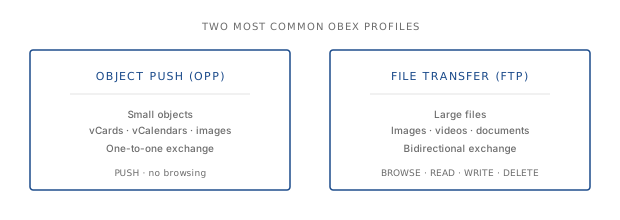
OBEX operates through several Bluetooth profiles, each designed to handle specific types of data transfer or interactions. The two most commonly used OBEX profiles are the Object Push Profile (OPP) and the File Transfer Profile (FTP), but other specialized profiles also exist for more niche use cases.
Object Push Profile (OPP)
The Object Push Profile (OPP) is one of the most commonly used OBEX profiles for simple, small-scale data exchanges between Bluetooth-enabled devices. It is designed for sending and receiving small objects, such as business cards (vCards), calendar events (vCalendars), or images, between devices. It is often used for one-time, one-to-one exchanges of small data items. To initiate an OPP transfer, the sender "pushes" an object (such as a contact or calendar entry) to the recipient device. The recipient device then acknowledges the push and, if successful, accepts the object. OPP is typically used for short-range transfers between devices like smartphones, tablets, or PDAs.
Use cases:
- Sharing contact information. The most common use of OPP is sending vCards (electronic business cards) from one phone to another.
- Calendar sharing. Users can also share calendar events or appointments between devices.
- Sending small files. OPP can be used for sending small files like text documents, images, or short videos between Bluetooth-enabled devices.
File Transfer Profile (FTP)
The File Transfer Profile (FTP) is more robust than OPP and is used for transferring larger files between Bluetooth devices. FTP supports browsing, accessing, and transferring files between devices. It enables the exchange of files in both directions (read and write) and allows for more complex file operations. FTP allows a Bluetooth-enabled device to act as a file server, allowing other devices to browse and access its file system over Bluetooth. It supports read, write, and delete operations, making it ideal for managing files between devices. FTP is typically used for larger files, such as images, videos, and documents.
Use cases:
- Mobile to PC file transfer. FTP is commonly used to transfer files from a mobile device to a computer or vice versa. For example, you can transfer photos, documents, or videos from a smartphone to a laptop via Bluetooth. When connecting a smartphone to a PC, FTP can be used to browse the phone's storage and transfer files between the devices. This is particularly useful for syncing data or transferring files without needing a cable.
- PC to PC file sharing. FTP can also be used for file transfer between two Bluetooth-enabled PCs, enabling seamless wireless file sharing without the need for a physical connection. When two Bluetooth-enabled PCs are paired, FTP can be used to browse and exchange files between them, similar to how it works with mobile devices.
Other OBEX profiles
While OPP and FTP are the most commonly used OBEX profiles, there are several other specialized OBEX profiles that serve specific functions:
- OBEX SyncML Profile. Used for synchronizing personal data (contacts, calendar, tasks) between devices, typically for mobile-to-PC synchronization or between mobile devices.
- OBEX Personal Area Networking (PAN) Profile. Enables networked communications between devices, such as sharing internet connectivity or exchanging data over a Bluetooth-based local area network.
- OBEX Push to Printer (BPP) Profile. Used for sending print jobs from mobile devices to Bluetooth printers, enabling wireless printing.
- OBEX Imaging Profile (BIP). Designed for transferring images from devices like smartphones to printers or cameras.
- OBEX Message Access Profile (MAP). Facilitates the management and transfer of messages (SMS, MMS, email) from one Bluetooth-enabled device to another.
OBEX in Bluetooth proximity marketing
Bluetooth proximity marketing leverages OBEX to facilitate the exchange of promotional content and advertisements between Bluetooth-enabled devices and customers' smartphones. Using Bluetooth Low Energy (BLE) alongside OBEX, proximity marketing systems can send personalized offers or notifications to users who enter a specific geographic area, such as within a store or near a product display.
How it works. A Bluetooth beacon emits signals that are detected by nearby Bluetooth-enabled devices. Using OBEX, the beacon can send a specific object, like a promotional offer, to users' phones when they come within range.
Use cases:
- Retail marketing. OBEX-based proximity marketing is used in retail environments to send coupons, discounts, or product information to potential customers' devices.
- Event promotion. At trade shows or conferences, OBEX can be used to distribute event schedules, special offers, or attendee information to participants' smartphones.
OBEX in the Wireless Communication Library
The Wireless Communication Library supports OBEX in the Bluetooth and Serial frameworks. The library implements support for the OBEX Object Push and OBEX File Transfer profiles. However, the library provides a basic OBEX class that can be easily extended for any other OBEX profiles.
By default, the library supports OPP as a client (can connect to other devices and "push" objects to it) and as a server (can receive
files from other devices). Also, the library supports the FTP as a client. The Bluetooth Framework
package includes the OppClient, FtpClient, and OppServer sample applications.
How to use the OPP client
The OppClient sample demonstrates how to discover nearby Bluetooth devices, connect to one, open an OBEX session, and
send or receive objects. The following code snippets are taken directly from the sample applications provided with the library.
Step 1 — Discovering devices
Before connecting, you must discover nearby Bluetooth devices. The sample uses the wclBluetoothManager to open the
Bluetooth manager and then start discovery on a classic radio. Found devices are listed in a control, and their names are retrieved
asynchronously.
procedure TfmMain.btDiscoverClick(Sender: TObject);
var
  Radio: TwclBluetoothRadio;
  Res: Integer;
begin
  Radio := GetRadio;
  if Radio <> nil then begin
    // Discover classic devices only.
    Res := Radio.Discover(10, dkClassic);
    if Res <> WCL_E_SUCCESS then begin
      MessageDlg('Failed to start discovering: 0x' + IntToHex(Res, 8),
        mtError, [mbOK], 0);
    end;
  end;
end;

procedure TfmMain.wclBluetoothManagerDeviceFound(Sender: TObject;
  const Radio: TwclBluetoothRadio; const Address: Int64);
var
  Item: TListItem;
begin
  Item := lvDevices.Items.Add;
  Item.Caption := IntToHex(Address, 12);
  Item.SubItems.Add('');
end;
void __fastcall TfmMain::btDiscoverClick(TObject *Sender)
{
TwclBluetoothRadio* Radio = GetRadio();
if (Radio != NULL)
{
// Discover classic devices only.
int Res = Radio->Discover(10, dkClassic);
if (Res != WCL_E_SUCCESS)
{
MessageDlg("Failed to start discovering: 0x" + IntToHex(Res, 8),
mtError, TMsgDlgButtons() << mbOK, 0);
}
}
}
void __fastcall TfmMain::wclBluetoothManagerDeviceFound(TObject *Sender,
const TwclBluetoothRadio *Radio, const __int64 Address)
{
TListItem* Item = lvDevices->Items->Add();
Item->Caption = IntToHex(Address, 12);
Item->SubItems->Add("");
}private void btDiscover_Click(object sender, EventArgs e)
{
wclBluetoothRadio Radio = GetRadio();
if (Radio != null)
{
// Discover classic devices only.
Int32 Res = Radio.Discover(10, wclBluetoothDiscoverKind.dkClassic);
if (Res != wclErrors.WCL_E_SUCCESS)
MessageBox.Show("Failed to start discovering: 0x" + Res.ToString("X8"));
}
}
void wclBluetoothManager_OnDeviceFound(object Sender, wclBluetoothRadio Radio, long Address)
{
ListViewItem Item = lvDevices.Items.Add(Address.ToString("X12"));
Item.SubItems.Add("");
}Private Sub btDiscover_Click(ByVal sender As System.Object, ByVal e As System.EventArgs) Handles btDiscover.Click
Dim Radio As wclBluetoothRadio = GetRadio()
If Not Radio Is Nothing Then
' Discover classic devices only.
Dim Res As Int32 = Radio.Discover(10, wclBluetoothDiscoverKind.dkClassic)
If Res <> wclErrors.WCL_E_SUCCESS Then
MessageBox.Show("Failed to start discovering: 0x" + Res.ToString("X8"))
End If
End If
End Sub
Private Sub wclBluetoothManager_OnDeviceFound(ByVal Sender As Object, ByVal Radio As wclBluetooth.wclBluetoothRadio, ByVal Address As Long) Handles wclBluetoothManager.OnDeviceFound
Dim Item As ListViewItem = lvDevices.Items.Add(Address.ToString("X12"))
Item.SubItems.Add("")
End Subvoid COppClientDlg::OnBnClickedButtonDiscover()
{
CwclBluetoothRadio* Radio = GetRadio();
if (Radio != NULL)
{
// Discover classic devices only.
int Res = Radio->Discover(10, dkClassic);
if (Res != WCL_E_SUCCESS)
AfxMessageBox(_T("Failed to start discovering: 0x") + IntToHex(Res));
}
}
void COppClientDlg::ManagerDeviceFound(void* Sender, CwclBluetoothRadio* const Radio,
const __int64 Address)
{
UNREFERENCED_PARAMETER(Sender);
UNREFERENCED_PARAMETER(Radio);
int Item = lvDevices.GetItemCount();
lvDevices.InsertItem(Item, IntToHex(Address));
lvDevices.SetItemText(Item, 1, _T(""));
}Step 2 — Connecting to a device
Once a device is selected, an RFCOMM connection is established using the wclRfCommClient component.
The service UUID must be set to the Object Push profile before connecting.
// In FormCreate:
wclRfCommClient.Service := OBEXObjectPushServiceClass_UUID;

procedure TfmMain.btConnectClick(Sender: TObject);
var
  Radio: TwclBluetoothRadio;
  Addr: Int64;
  Res: Integer;
begin
  if wclRfCommClient.State <> csDisconnected then
    MessageDlg('Client is connected', mtWarning, [mbOK], 0)
  else begin
    if lvDevices.Selected = nil then
      MessageDlg('Select device', mtWarning, [mbOK], 0)
    else begin
      Radio := GetRadio;
      if Radio <> nil then begin
        Addr := StrToInt64('$' + lvDevices.Selected.Caption);
        wclRfCommClient.Address := Addr;
        Res := wclRfCommClient.Connect(Radio);
        if Res <> WCL_E_SUCCESS then begin
          MessageDlg('Failed to connect: 0x' + IntToHex(Res, 8),
            mtError, [mbOK], 0);
        end;
      end;
    end;
  end;
end;
// In FormCreate:
wclRfCommClient->Service = OBEXObjectPushServiceClass_UUID;
void __fastcall TfmMain::btConnectClick(TObject *Sender)
{
if (wclRfCommClient->State != csDisconnected)
MessageDlg("Client is connected", mtWarning, TMsgDlgButtons() << mbOK, 0);
else
{
if (lvDevices->Selected == NULL)
MessageDlg("Select device", mtWarning, TMsgDlgButtons() << mbOK, 0);
else
{
TwclBluetoothRadio* Radio = GetRadio();
if (Radio != NULL)
{
__int64 Addr = StrToInt64("$" + lvDevices->Selected->Caption);
wclRfCommClient->Address = Addr;
int Res = wclRfCommClient->Connect(Radio);
if (Res != WCL_E_SUCCESS)
{
MessageDlg("Failed to connect: 0x" + IntToHex(Res, 8),
mtError, TMsgDlgButtons() << mbOK, 0);
}
}
}
}
}// In fmMain_Load:
wclRfCommClient.Service = wclUUIDs.OBEXObjectPushServiceClass_UUID;
private void btConnect_Click(object sender, EventArgs e)
{
if (wclRfCommClient.State != wclClientState.csDisconnected)
MessageBox.Show("Client is connected");
else
{
if (lvDevices.SelectedItems.Count == 0)
MessageBox.Show("Select device");
else
{
wclBluetoothRadio Radio = GetRadio();
if (Radio != null)
{
Int64 Addr = Convert.ToInt64(lvDevices.SelectedItems[0].Text, 16);
wclRfCommClient.Address = Addr;
Int32 Res = wclRfCommClient.Connect(Radio);
if (Res != wclErrors.WCL_E_SUCCESS)
MessageBox.Show("Failed to connect: 0x" + Res.ToString("X8"));
}
}
}
}' In fmMain_Load:
wclRfCommClient.Service = wclUUIDs.OBEXObjectPushServiceClass_UUID
Private Sub btConnect_Click(ByVal sender As System.Object, ByVal e As System.EventArgs) Handles btConnect.Click
If wclRfCommClient.State <> wclClientState.csDisconnected Then
MessageBox.Show("Client is connected")
Else
If lvDevices.SelectedItems.Count = 0 Then
MessageBox.Show("Select device")
Else
Dim Radio As wclBluetoothRadio = GetRadio()
If Not Radio Is Nothing Then
Dim Addr As Int64 = Convert.ToInt64(lvDevices.SelectedItems(0).Text, 16)
wclRfCommClient.Address = Addr
Dim Res As Int32 = wclRfCommClient.Connect(Radio)
If Res <> wclErrors.WCL_E_SUCCESS Then
MessageBox.Show("Failed to connect: 0x" + Res.ToString("X8"))
End If
End If
End If
End If
End Sub// In OnInitDialog:
wclRfCommClient.Service = OBEXObjectPushServiceClass_UUID;
void COppClientDlg::OnBnClickedButtonConnect()
{
if (wclRfCommClient.State != csDisconnected)
AfxMessageBox(_T("Client is connected"));
else
{
POSITION Pos = lvDevices.GetFirstSelectedItemPosition();
if (Pos == NULL)
AfxMessageBox(_T("Select device"));
else
{
CwclBluetoothRadio* Radio = GetRadio();
int Item = lvDevices.GetNextSelectedItem(Pos);
wclRfCommClient.Address = StrToInt64(lvDevices.GetItemText(Item, 0));
int Res = wclRfCommClient.Connect(Radio);
if (Res != WCL_E_SUCCESS)
AfxMessageBox(_T("Error: 0x") + IntToHex(Res));
}
}
}Step 3 — Opening an OBEX session
After the RFCOMM connection is established, the wclObexOppClient data processor is automatically created in
the OnCreateProcessor event. To start the OBEX session, call the Connect method on the OBEX client
object.
procedure TfmMain.wclRfCommClientCreateProcessor(Sender: TObject;
  const Connection: TwclClientDataConnection);
begin
  // Create the OPP client data processor for the connection.
  FOpp := TwclObexOppClient.Create(Connection);
  FOpp.OnConnect := OppConnect;
  FOpp.OnDisconnect := OppDisconnect;
  FOpp.OnGetComplete := OppGetComplete;
  FOpp.OnPutComplete := OppPutComplete;
  FOpp.OnProgress := OppProgress;
end;

procedure TfmMain.btOpenSessionClick(Sender: TObject);
var
  Res: Integer;
begin
  if FOpp = nil then
    MessageDlg('Not connected', mtWarning, [mbOK], 0)
  else begin
    Res := FOpp.Connect;
    if Res <> WCL_E_SUCCESS then begin
      MessageDlg('Open session failed: 0x' + IntToHex(Res, 8), mtError,
        [mbOK], 0);
    end;
  end;
end;
void __fastcall TfmMain::wclRfCommClientCreateProcessor(TObject *Sender,
const TwclClientDataConnection *Connection)
{
// Create the OPP client data processor for the connection.
FOpp = new TwclObexOppClient((TwclClientDataConnection*)Connection);
FOpp->OnConnect = OppConnect;
FOpp->OnDisconnect = OppDisconnect;
FOpp->OnGetComplete = (TwclObexObjectOperationResultEvent)&OppGetComplete;
FOpp->OnPutComplete = (TwclObexObjectOperationResultEvent)&OppPutComplete;
FOpp->OnProgress = OppProgress;
}
void __fastcall TfmMain::btOpenSessionClick(TObject *Sender)
{
if (FOpp == NULL)
MessageDlg("Not connected", mtWarning, TMsgDlgButtons() << mbOK, 0);
else
{
int Res = FOpp->Connect();
if (Res != WCL_E_SUCCESS)
{
MessageDlg("Open session failed: 0x" + IntToHex(Res, 8), mtError,
TMsgDlgButtons() << mbOK, 0);
}
}
}void wclRfCommClient_OnCreateProcessor(object Sender, wclClientDataConnection Connection)
{
// Create the OPP client data processor for the connection.
FOpp = new wclObexOppClient(Connection);
FOpp.OnConnect += new wclObexOperationResultEvent(FOpp_OnConnect);
FOpp.OnDisconnect += new wclObexOperationResultEvent(FOpp_OnDisconnect);
FOpp.OnGetComplete += new wclObexObjectOperationResultEvent(FOpp_OnGetComplete);
FOpp.OnPutComplete += new wclObexObjectOperationResultEvent(FOpp_OnPutComplete);
FOpp.OnProgress += new wclObexOperationProgressEvent(FOpp_OnProgress);
}
private void btOpenSession_Click(object sender, EventArgs e)
{
if (FOpp == null)
MessageBox.Show("Not connected");
else
{
Int32 Res = FOpp.Connect();
if (Res != wclErrors.WCL_E_SUCCESS)
MessageBox.Show("Open session failed: 0x" + Res.ToString("X8"));
}
}Private Sub wclRfCommClient_OnCreateProcessor(ByVal Sender As Object, ByVal Connection As wclCommunication.wclClientDataConnection) Handles wclRfCommClient.OnCreateProcessor
' Create the OPP client data processor for the connection.
FOpp = New wclObexOppClient(Connection)
End Sub
Private Sub btOpenSession_Click(ByVal sender As System.Object, ByVal e As System.EventArgs) Handles btOpenSession.Click
If FOpp Is Nothing Then
MessageBox.Show("Not connected")
Else
Dim Res As Int32 = FOpp.Connect()
If Res <> wclErrors.WCL_E_SUCCESS Then
MessageBox.Show("Open session failed: 0x" + Res.ToString("X8"))
End If
End If
End Subvoid COppClientDlg::ClientCreateProcessor(void* Sender, CwclClientDataConnection* const Connection)
{
UNREFERENCED_PARAMETER(Sender);
// Create the OPP client data processor for the connection.
FOpp = new CwclObexOppClient(Connection);
__hook(&CwclObexOppClient::OnConnect, FOpp, &COppClientDlg::OppConnect);
__hook(&CwclObexOppClient::OnDisconnect, FOpp, &COppClientDlg::OppDisconnect);
__hook(&CwclObexOppClient::OnGetComplete, FOpp, &COppClientDlg::OppGetComplete);
__hook(&CwclObexOppClient::OnPutComplete, FOpp, &COppClientDlg::OppPutComplete);
__hook(&CwclObexOppClient::OnProgress, FOpp, &COppClientDlg::OppProgress);
}
void COppClientDlg::OnBnClickedButtonOpenSession()
{
if (FOpp == NULL)
AfxMessageBox(_T("Not connected"));
else
{
int Res = FOpp->Connect();
if (Res != WCL_E_SUCCESS)
AfxMessageBox(_T("Open session failed: 0x") + IntToHex(Res));
}
}Step 4 — Sending a file
To send a file, use the Put method of the OPP client. Provide the file name, a description, and a stream
(here a file stream). The OnProgress and OnPutComplete events handle progress and completion.
procedure TfmMain.btSendFileClick(Sender: TObject);
var
  Res: Integer;
  Stream: TStream;
begin
  if FOpp = nil then
    MessageDlg('Not connected', mtWarning, [mbOK], 0)
  else begin
    if edFileName.Text = '' then
      MessageDlg('Select file', mtWarning, [mbOK], 0)
    else begin
      Stream := TFileStream.Create(edFileName.Text, fmOpenRead);
      Res := FOpp.Put(ExtractFileName(edFileName.Text), '', Stream);
      if Res <> WCL_E_SUCCESS then begin
        MessageDlg('Send file failed: 0x' + IntToHex(Res, 8), mtError,
          [mbOK], 0);
        Stream.Free;
      end;
    end;
  end;
end;

procedure TfmMain.OppProgress(Sender: TObject; const Length: Cardinal;
  const Position: Cardinal);
begin
  ProgressBar.Max := Length;
  ProgressBar.Position := Position;
end;

procedure TfmMain.OppPutComplete(Sender: TObject; const Error: Integer;
  const Description: string; const Stream: TStream);
begin
  lbLog.Items.Add('File sending completed with result: 0x' +
    IntToHex(Error, 8) + '. Description: ' + Description);
  ProgressBar.Position := 0;
  ProgressBar.Max := 0;
  // We must destroy the stream object here.
  Stream.Free;
end;
void __fastcall TfmMain::btSendFileClick(TObject *Sender)
{
if (FOpp == NULL)
MessageDlg("Not connected", mtWarning, TMsgDlgButtons() << mbOK, 0);
else
{
if (edFileName->Text == "")
MessageDlg("Select file", mtWarning, TMsgDlgButtons() << mbOK, 0);
else
{
TFileStream* Stream = new TFileStream(edFileName->Text, fmOpenRead);
int Res = FOpp->Put(ExtractFileName(edFileName->Text), "", Stream);
if (Res != WCL_E_SUCCESS)
{
MessageDlg("Send file failed: 0x" + IntToHex(Res, 8), mtError,
TMsgDlgButtons() << mbOK, 0);
Stream->Free();
}
}
}
}
void __fastcall TfmMain::OppProgress(TObject* Sender, const unsigned Length,
const unsigned Position)
{
ProgressBar->Max = Length;
ProgressBar->Position = Position;
}
void __fastcall TfmMain::OppPutComplete(TObject* Sender, const int Error,
const String Description, TStream* const Stream)
{
lbLog->Items->Add("File sending completed with result: 0x" +
IntToHex(Error, 8) + ". Description: " + Description);
ProgressBar->Position = 0;
ProgressBar->Max = 0;
// We must destroy the stream object here.
((TStream*)Stream)->Free();
}private void btSendFile_Click(object sender, EventArgs e)
{
if (FOpp == null)
MessageBox.Show("Not connected");
else
{
if (edFileName.Text == "")
MessageBox.Show("Select file");
else
{
FileStream Stream = new FileStream(edFileName.Text, FileMode.Open);
Int32 Res = FOpp.Put(Path.GetFileName(edFileName.Text), "", Stream);
if (Res != wclErrors.WCL_E_SUCCESS)
{
MessageBox.Show("Send file failed: 0x" + Res.ToString("X8"));
Stream.Close();
Stream.Dispose();
}
}
}
}
void FOpp_OnProgress(object Sender, uint Size, uint Position)
{
ProgressBar.Maximum = (int)Size;
ProgressBar.Value = (int)Position;
}
void FOpp_OnPutComplete(object Sender, int Error, string Description, System.IO.Stream Stream)
{
lbLog.Items.Add("File sending completed with result: 0x" + Error.ToString("X8") +
". Description: " + Description);
ProgressBar.Value = 0;
ProgressBar.Maximum = 0;
// We must destroy the stream object here.
Stream.Close();
Stream.Dispose();
}Private Sub btSendFile_Click(ByVal sender As System.Object, ByVal e As System.EventArgs) Handles btSendFile.Click
If FOpp Is Nothing Then
MessageBox.Show("Not connected")
Else
If edFileName.Text = "" Then
MessageBox.Show("Select file")
Else
Dim Stream As FileStream = New FileStream(edFileName.Text, FileMode.Open)
Dim Res As Int32 = FOpp.Put(Path.GetFileName(edFileName.Text), "", Stream)
If Res <> wclErrors.WCL_E_SUCCESS Then
MessageBox.Show("Send file failed: 0x" + Res.ToString("X8"))
Stream.Close()
Stream.Dispose()
End If
End If
End If
End Sub
Private Sub FOpp_OnProgress(ByVal Sender As Object, ByVal Size As UInteger, ByVal Position As UInteger) Handles FOpp.OnProgress
ProgressBar.Maximum = Size
ProgressBar.Value = Position
End Sub
Private Sub FOpp_OnPutComplete(ByVal Sender As Object, ByVal [Error] As Integer, ByVal Description As String, ByVal Stream As System.IO.Stream) Handles FOpp.OnPutComplete
lbLog.Items.Add("File sending completed with result: 0x" + [Error].ToString("X8") + ". Description: " + Description)
ProgressBar.Value = 0
ProgressBar.Maximum = 0
' We must destroy the stream object here.
Stream.Close()
Stream.Dispose()
End Subvoid COppClientDlg::OnBnClickedButtonSendFile()
{
if (FOpp == NULL)
AfxMessageBox(_T("Not connected"));
else
{
CString s;
edFileName.GetWindowText(s);
if (s == _T(""))
AfxMessageBox(_T("Select file"));
else
{
tstring FileName = tstring(s);
CwclFileStream* Stream = new CwclFileStream(FileName, OPEN_EXISTING, GENERIC_READ,
FILE_SHARE_READ);
size_t last_slash_idx = FileName.find_last_of(_T("\\/"));
if (tstring::npos != last_slash_idx)
FileName.erase(0, last_slash_idx + 1);
int Res = FOpp->Put(FileName, _T(""), Stream);
if (Res != WCL_E_SUCCESS)
{
AfxMessageBox(_T("Send file failed: 0x") + IntToHex(Res));
delete Stream;
}
}
}
}
void COppClientDlg::OppProgress(void* Sender, const unsigned long Size,
const unsigned long Position)
{
UNREFERENCED_PARAMETER(Sender);
ProgressBar.SetRange32(0, Size);
ProgressBar.SetPos(Position);
}
void COppClientDlg::OppPutComplete(void* Sender, const int Error, const tstring& Description,
CwclStream* const Stream)
{
UNREFERENCED_PARAMETER(Sender);
lbLog.AddString(_T("File sending completed with result: 0x") + IntToHex(Error) +
_T(". Description: ") + CString(Description.c_str()));
ProgressBar.SetPos(0);
ProgressBar.SetRange32(0, 0);
// We must destroy the stream object here.
delete Stream;
}Step 5 — Receiving a vCard
To receive an object, such as a default vCard, call the Get method with the appropriate MIME type and a
write stream. The OnGetComplete event fires when the transfer finishes.
procedure TfmMain.btGetvCardClick(Sender: TObject);
var
  Res: Integer;
  Stream: TStream;
begin
  if FOpp = nil then
    MessageDlg('Not connected', mtWarning, [mbOK], 0)
  else begin
    Stream := TFileStream.Create('vcard.vcf', fmCreate);
    // Request default vCard object.
    Res := FOpp.Get('text/x-vCard', Stream);
    if Res <> WCL_E_SUCCESS then begin
      MessageDlg('GetvCard failed: 0x' + IntToHex(Res, 8), mtError, [mbOK], 0);
      Stream.Free;
    end;
  end;
end;

procedure TfmMain.OppGetComplete(Sender: TObject; const Error: Integer;
  const Description: string; const Stream: TStream);
begin
  lbLog.Items.Add('File receiving completed with result: 0x' +
    IntToHex(Error, 8) + '. Description: ' + Description);
  ProgressBar.Position := 0;
  ProgressBar.Max := 0;
  // We must destroy the stream object here.
  Stream.Free;
end;
void __fastcall TfmMain::btGetvCardClick(TObject *Sender)
{
if (FOpp == NULL)
MessageDlg("Not connected", mtWarning, TMsgDlgButtons() << mbOK, 0);
else
{
TFileStream* Stream = new TFileStream("vcard.vcf", fmCreate);
// Request default vCard object.
int Res = FOpp->Get("text/x-vCard", Stream);
if (Res != WCL_E_SUCCESS)
{
MessageDlg("GetvCard failed: 0x" + IntToHex(Res, 8), mtError,
TMsgDlgButtons() << mbOK, 0);
Stream->Free();
}
}
}
void __fastcall TfmMain::OppGetComplete(TObject* Sender, const int Error,
const String Description, TStream* const Stream)
{
lbLog->Items->Add("File receiving completed with result: 0x" +
IntToHex(Error, 8) + ". Description: " + Description);
ProgressBar->Position = 0;
ProgressBar->Max = 0;
// We must destroy the stream object here.
((TStream*)Stream)->Free();
}private void btGetVCard_Click(object sender, EventArgs e)
{
if (FOpp == null)
MessageBox.Show("Not connected");
else
{
FileStream Stream = new FileStream("vcard.vcf", FileMode.CreateNew);
// Request default vCard object.
Int32 Res = FOpp.Get("text/x-vCard", Stream);
if (Res != wclErrors.WCL_E_SUCCESS)
{
MessageBox.Show("GetvCard failed: 0x" + Res.ToString("X8"));
Stream.Close();
Stream.Dispose();
}
}
}
void FOpp_OnGetComplete(object Sender, int Error, string Description, Stream Stream)
{
lbLog.Items.Add("File receiving completed with result: 0x" +
Error.ToString("X8") + ". Description: " + Description);
ProgressBar.Value = 0;
ProgressBar.Maximum = 0;
// We must destroy the stream object here.
Stream.Close();
Stream.Dispose();
}Private Sub btGetVCard_Click(ByVal sender As System.Object, ByVal e As System.EventArgs) Handles btGetVCard.Click
If FOpp Is Nothing Then
MessageBox.Show("Not connected")
Else
Dim Stream As FileStream = New FileStream("vcard.vcf", FileMode.CreateNew)
' Request default vCard object.
Dim Res As Int32 = FOpp.Get("text/x-vCard", Stream)
If Res <> wclErrors.WCL_E_SUCCESS Then
MessageBox.Show("GetvCard failed: 0x" + Res.ToString("X8"))
Stream.Close()
Stream.Dispose()
End If
End If
End Sub
Private Sub FOpp_OnGetComplete(ByVal Sender As Object, ByVal [Error] As Integer, ByVal Description As String, ByVal Stream As System.IO.Stream) Handles FOpp.OnGetComplete
lbLog.Items.Add("File receiving completed with result: 0x" + [Error].ToString("X8") + ". Description: " + Description)
ProgressBar.Value = 0
ProgressBar.Maximum = 0
' We must destroy the stream object here.
Stream.Close()
Stream.Dispose()
End Subvoid COppClientDlg::OnBnClickedButtonGetVcard()
{
if (FOpp == NULL)
AfxMessageBox(_T("Not connected"));
else
{
CwclFileStream* Stream = new CwclFileStream(_T("vcard.vcf"), CREATE_ALWAYS,
GENERIC_WRITE, FILE_SHARE_WRITE);
// Request default vCard object.
int Res = FOpp->Get(_T("text/x-vCard"), Stream);
if (Res != WCL_E_SUCCESS)
{
AfxMessageBox(_T("GetvCard failed: 0x") + IntToHex(Res));
delete Stream;
}
}
}
void COppClientDlg::OppGetComplete(void* Sender, const int Error, const tstring& Description,
CwclStream* const Stream)
{
UNREFERENCED_PARAMETER(Sender);
lbLog.AddString(_T("File receiving completed with result: 0x") +
IntToHex(Error) + _T(". Description: ") + CString(Description.c_str()));
ProgressBar.SetPos(0);
ProgressBar.SetRange32(0, 0);
// We must destroy the stream object here.
delete Stream;
}Frequently asked questions
- What is OBEX (Object Exchange)?
- OBEX is a lightweight protocol for transferring objects like files, contacts, and images between devices. Originally designed for infrared by IrDA, it was later adapted for Bluetooth and operates over RFCOMM.
- What are the main OBEX profiles?
- The two most common are Object Push Profile (OPP) for sending small objects like vCards, and File Transfer Profile (FTP) for browsing and transferring files. Other profiles include SyncML, BPP, BIP, and MAP.
- Does the Wireless Communication Library support OBEX?
- Yes, it supports OPP client and server, and FTP client. Sample applications are included, and the base OBEX class can be extended for custom profiles.