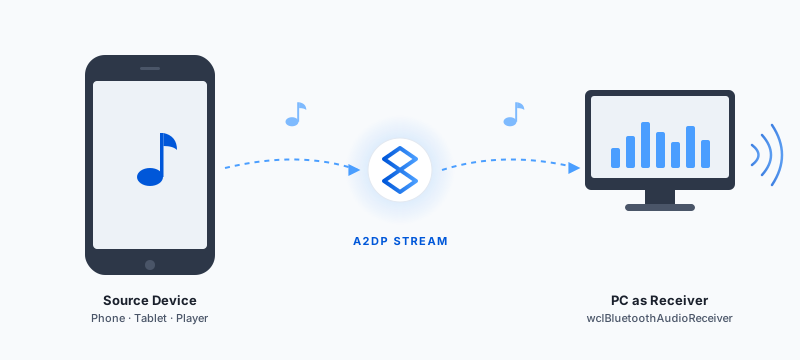
Part of the Bluetooth Audio guide.
The audio receiver feature turns a PC into a Bluetooth audio playback device — the PC becomes the sink of an A2DP
stream instead of the source. Windows already exposes the PC as an A2DP source (you can send audio from a PC to headphones or
a speaker), but the reverse direction is not available out of the box. The wclBluetoothAudioReceiver class fills
that gap: it makes the PC listen for, or actively connect to, an A2DP source and receive its audio stream.
This is useful whenever audio needs to originate from a phone, tablet, or another Bluetooth player and end up on the PC side — for capture, monitoring, processing, or playback through the PC's own audio system.
The receiver works together with wclBluetoothAudioWatcher, which discovers nearby source devices and delivers
them to your code through the OnDeviceAdded event. The receiver itself exposes the A2DP connection lifecycle
through OnConnected and OnDisconnected events, and supports both passive and active connection
initiation.
Use cases
The audio receiver is the right tool whenever the PC must act as the audio endpoint rather than the audio source. Typical scenarios:
- Testing A2DP output of a source device. Verify that a phone, tablet, or another Bluetooth player actually negotiates A2DP and starts streaming — without needing physical Bluetooth speakers on the test bench.
- Capturing phone audio on the PC. The incoming stream is delivered to the PC's audio system, where it can be routed to recording software, transcription tools, or a streaming pipeline. This is handy for podcast production, call recording, and field capture where the phone is the microphone-equipped device.
- Turning a PC into a Bluetooth speaker. A PC with a good sound system can act as a wireless playback target for a phone, tablet, or another PC. The receiver is the software half of that setup — no dedicated Bluetooth speaker required.
- QA and regression testing. Because the receiver is programmable, connection scenarios (initiation from the source, forced initiation from the PC, disconnection, reconnection) can be automated. Useful for driver vendors, headset manufacturers, and anyone validating A2DP behavior across firmware revisions.
- Integrating phone audio into PC workflows. Music, voice memos, or call audio from a phone can be mixed into a conference setup, a streaming session, or a home studio — the PC acts as the bridge between the phone and the rest of the audio chain.
- Demos and presentations. Route audio from a presenter's phone through the PC that drives the room's sound system, without changing the source device or adding a hardware receiver.
Across all of these scenarios, the receiver brings the same set of advantages:
- No extra hardware. The PC itself becomes the Bluetooth audio endpoint.
- Programmatic control. Start, stop, and observe the connection from your own application instead of relying on the Windows UI.
- Event-driven.
OnConnected,OnDisconnected, andOnDeviceAddedlet the application react to the stream lifecycle instead of polling. - Cross-language. The same API is available from Delphi, C++ Builder, C#, VB.NET, and C++.
- Cohesive with the rest of the framework. Combine the receiver with the audio switcher and volume control to build a complete audio workflow on the same object model.
How it works
The workflow has five stages:
- Pair with the source device. The source must be paired with the PC before the receiver can accept its
stream. The
BluetoothManagersample application shows how to pair with a Bluetooth-enabled device. - Install the A2DP service. Once the device is paired, enumerate its services, select the A2DP service, and install it. This is what makes the PC visible to the source as an A2DP sink.
- Discover sources with the watcher. Start
wclBluetoothAudioWatcherto enumerate nearby source devices. The watcher firesOnDeviceAddedfor each source it finds; the application stores the selected device ID and passes it to the receiver. - Start the receiver. Call
Listenwith the selected device ID to wait for the source to start the stream, or callConnectto initiate the connection from the PC side. Either way, the receiver registers itself as the A2DP sink for that device. - React to events.
OnConnectedfires when the remote device starts an audio connection;OnDisconnectedfires when the remote device terminates it. Both are the natural places to update UI, start monitoring with the volume classes, or log the connection lifecycle.
Limitations
Current limitations of the audio receiver:
- Only the A2DP profile is supported. Voice profiles such as HFP and HSP are out of scope.
- To disconnect a remote device from the PC side, close the receiver and start it again.
- If the remote device terminates the connection from its side, initiating a new connection from the PC side requires restarting the receiver.
Using wclBluetoothAudioReceiver
The example below starts the audio watcher, handles a discovered device, and makes the PC listen for or connect to an A2DP source.
var
  Watcher: TwclBluetoothAudioWatcher;
  Receiver: TwclBluetoothAudioReceiver;
begin
  Watcher := TwclBluetoothAudioWatcher.Create(nil);
  Receiver := TwclBluetoothAudioReceiver.Create(nil);

  Watcher.OnDeviceAdded := WatcherDeviceAdded;
  Watcher.Start;

  // In the DeviceAdded handler, store the device ID.
  // Make the PC discoverable as an A2DP receiver:
  Receiver.Listen(SelectedDeviceId);

  // Or force a connection to a specific paired device:
  Receiver.Connect;

  Receiver.Close;
  Watcher.Stop;
  Receiver.Free;
  Watcher.Free;
end;
TwclBluetoothAudioWatcher* Watcher =
new TwclBluetoothAudioWatcher(NULL);
TwclBluetoothAudioReceiver* Receiver =
new TwclBluetoothAudioReceiver(NULL);
Watcher->OnDeviceAdded = WatcherDeviceAdded;
Watcher->Start();
// DeviceAdded event handler:
void __fastcall TForm1::WatcherDeviceAdded(TObject* Sender,
const String Id, const String Name)
{
SelectedDeviceId = Id;
}
// Listen for incoming connections:
Receiver->Listen(SelectedDeviceId);
// Or force a connection:
Receiver->Connect();
Receiver->Close();
Watcher->Stop();
delete Receiver;
delete Watcher;wclBluetoothAudioWatcher Watcher =
new wclBluetoothAudioWatcher();
wclBluetoothAudioReceiver Receiver =
new wclBluetoothAudioReceiver();
Watcher.OnDeviceAdded += (sender, args) =>
{
SelectedDeviceId = args.Id;
};
Watcher.Start();
// Start listening as an A2DP receiver:
Receiver.Listen(SelectedDeviceId);
// Or initiate a connection from the PC side:
Receiver.Connect();
Receiver.Close();
Watcher.Stop();Dim Watcher As New wclBluetoothAudioWatcher()
Dim Receiver As New wclBluetoothAudioReceiver()
AddHandler Watcher.OnDeviceAdded, Sub(sender, args)
SelectedDeviceId = args.Id
End Sub
Watcher.Start()
' Start listening:
Receiver.Listen(SelectedDeviceId)
' Or force a connection:
Receiver.Connect()
Receiver.Close()
Watcher.Stop()CwclBluetoothAudioWatcher Watcher;
CwclBluetoothAudioReceiver Receiver;
Watcher.OnDeviceAdded = [](void* Sender,
const tstring& Id, const tstring& Name)
{
SelectedDeviceId = Id;
};
Watcher.Start();
// Listen for incoming A2DP connections:
Receiver.Listen(SelectedDeviceId);
// Or initiate a connection:
Receiver.Connect();
Receiver.Close();
Watcher.Stop();Frequently asked questions
- Can the Bluetooth Framework turn a PC into a Bluetooth speaker?
- Yes. The
wclBluetoothAudioReceiverclass allows a PC to act as an A2DP audio receiver, accepting incoming audio streams from paired devices. - What is the difference between Listen and Connect on the audio receiver?
Listenmakes the PC wait for the remote device to start an A2DP connection, and is the right choice when the source initiates the stream.Connectforces the connection from the PC side, and is useful when the source has already been paired and does not start the stream on its own.- Why does the audio receiver support only A2DP?
- A2DP is the Bluetooth Classic profile for high-quality stereo audio streaming. It is the profile used by phones, tablets, and music players to send audio to a speaker or headset. The receiver implements A2DP; other audio profiles such as HFP and HSP are used for voice calls and are not part of the receiver feature.
- How can I monitor or process the audio received by the receiver?
- Once the receiver is connected, the incoming stream is delivered to the PC's audio stack. The received audio can be
monitored or adjusted with the
wclAudioMeterandwclAudioVolumeclasses — see volume control — and routed to other applications such as streaming, conferencing, or recording software through the standard Windows audio system. - How do I disconnect the remote device from the PC side?
- Close the receiver and start it again. This is a current limitation of the feature: there is no separate
Disconnectcall, and closing the receiver is the supported way to terminate an A2DP connection from the PC side.