Part of the Bluetooth Audio guide.
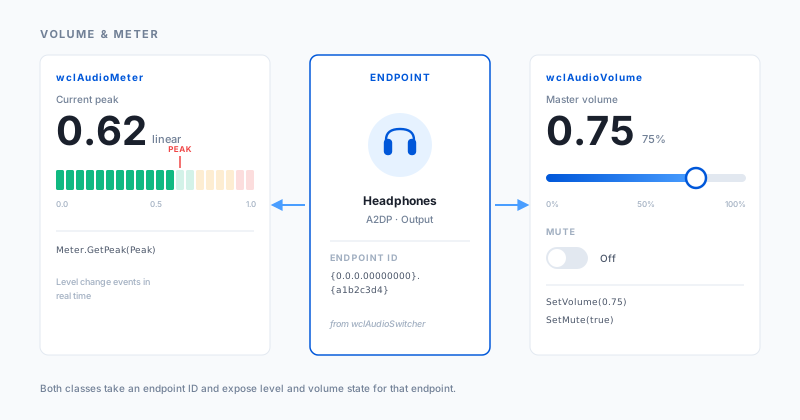
Two classes cover everything your application needs to know about what's audible, and everything it needs to do about
it. wclAudioMeter reports the live level of a chosen endpoint, and wclAudioVolume handles the gain
and mute on the same endpoint. Both take the same endpoint ID, so once the application has decided which device it's working
with, the rest is straightforward.
The ID comes from wclAudioSwitcher.Enum — see the audio switcher
page — and goes straight into the Open method of either class. The same value serves both, and the model does
not change between Bluetooth, USB, HDMI, and internal audio devices. The device type is irrelevant; the endpoint is the
only abstraction you need to care about.
That single abstraction is worth pausing on, because it's what makes these classes so much easier to use than the raw Windows Core Audio API. The operating system exposes audio devices as COM objects with reference-counted interfaces, and the code required to obtain a single volume value is a small ceremony of interface queries and cleanup. The framework reduces that ceremony to one method call on one object. The endpoint ID is the only thing the application needs to obtain up front, and after that the meter and volume classes handle the rest.
The two classes cover different parts of the signal path, which is why keeping them separate matters.
wclAudioMeter measures the signal flowing through the endpoint — a 0.0–1.0 scalar that reflects what is
actually playing. wclAudioVolume controls the gain applied to that signal, plus a mute toggle. The distinction
shows up in small but important ways: a silent stream reads low on the meter even with the volume up, and a loud stream
reads high even with the volume down. Applications that care about what's happening on the wire use the meter; applications
that want to control what the user hears use the volume class. In practice, most applications use both.
There is also an event model. The meter does not simply answer questions when asked — it pushes updates to whoever is listening. For a UI that needs to display a live level bar, this is the difference between a meter that flickers and a meter that glides. For a monitoring tool, it's the difference between a sample every few hundred milliseconds and a continuous stream of observations. The application decides how much detail it needs and subscribes accordingly.
That's the difference between an application that reacts to audio and one that merely plays it. The framework lets you watch the signal, warn on silence or clipping, normalize on the fly, and mute without destroying the previous level — all from code, without spawning a Windows sound settings dialog or guessing at undocumented APIs. Everything that a well-behaved audio application might want to do with an endpoint is a method call away.
What it's good for
Anywhere a user is producing or monitoring audio, these classes earn their keep. A streaming or broadcast tool wants a live level meter in its own UI — real numbers, real time, no polling — plus a mute button that actually mutes the output and not just the application's own audio. The meter drives the UI, the volume class stays in sync with whatever the hardware controls are doing, and nobody has to open the Windows volume mixer to confirm.
On the assistive side, tools for users with hearing impairments rely on the meter to display the current level and on the volume class to normalize or boost it. Recording and transcription software reads the incoming level before committing to disk, warns when the signal is too weak or clipping, and adjusts the gain mid-session. The same building blocks serve both cases without a second API to learn.
QA teams use the meter to confirm that a headset's hardware volume buttons really change the system volume, and the volume class to drive automated level tests across firmware revisions. Kiosks and public-address systems enforce quiet hours by capping the master volume; managed environments mute on idle or on demand and log the level history. None of these workflows need administrator privileges or a trip through the Windows mixer — just the endpoint ID and the two classes.
There is also the entire family of applications that want to be the Windows sound settings but better. A volume slider that actually responds to hardware changes. A mute button that stays in sync across multiple windows. A level indicator that shows what is playing without having to open the mixer. A profile switcher that moves the default between a headset and speakers based on the time of day or the running application. Each of these is a small thing, and each of them is impossible to build correctly without direct access to the endpoint's volume and level state. The two classes in this article make that access a method call.
The pattern repeats across domains. A conferencing client that switches to a Bluetooth headset when it connects, and back to speakers when it disconnects. A monitoring tool that flashes a warning when the input goes silent for too long. A parental-control utility that enforces a maximum volume after bedtime. A recording studio application that logs the peak level of every take. A restaurant background-music system that fades out at closing time. The specifics differ, but the underlying requirement is always the same: know the level, control the gain, respect the mute state, and stay in sync with what the rest of the system is doing.
Understanding the signal path
The reason meter and volume are separate classes — rather than one class with two knobs — is that they operate at different points in the audio pipeline. The signal leaves the application, is mixed with other applications' audio, is optionally processed by enhancements and effects, and finally reaches the endpoint's master gain stage before being sent to the hardware. The meter reports what is happening at the endpoint — after all of that mixing and processing, but before the final gain. The volume class controls that final gain.
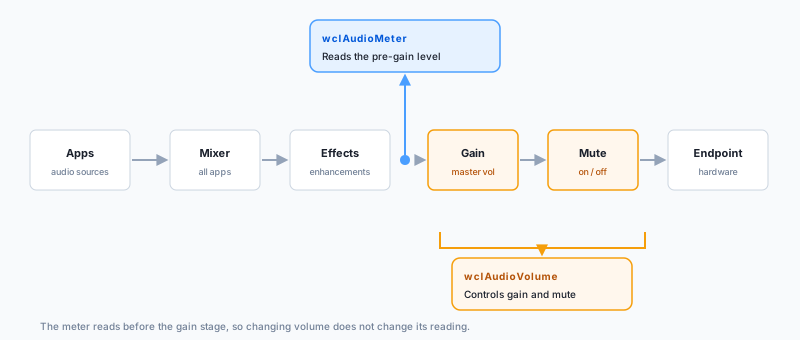
The practical consequence is that the meter and the volume slider are independent. Raising the volume does not make the meter read higher, because the meter sits before the gain stage. Lowering the volume does not make the meter read lower, for the same reason. What does change the meter is the audio itself: the content being played, the number of applications currently producing sound, and any signal processing applied upstream. When the meter is silent but the volume is up, the problem is upstream — nothing is playing, or the source is muted, or the routing is wrong. When the meter is peaking but the user hears nothing, the problem is downstream — the gain is low, or the endpoint is muted, or the hardware is off.
This separation is what makes the meter useful for diagnostics. A level reading of zero on an endpoint that should be active is an immediate red flag that something is wrong with the source. A level reading of 1.0 sustained is a sign of clipping and a cue to lower the upstream gain. A level that oscillates smoothly in the middle of the range is what a healthy stream looks like. None of that information is available from the volume value alone, and none of it requires access to the raw audio samples — just the endpoint's level reporting.
For applications that want to normalize the output, the pattern is straightforward: read the meter to see how hot the signal is, and adjust the volume to bring it into the desired range. Because the two classes share the endpoint ID and can be opened at the same time, this loop is a few method calls. There is no risk of one class interfering with the other, and no ordering requirement between them.
Inside the workflow
The workflow is short. Start with the endpoint ID: wclAudioSwitcher.Enum enumerates the devices, and the
Id of the target device is what you pass to Open on wclAudioMeter or
wclAudioVolume. Both classes accept the same ID and can be opened at the same time — there is no conflict
between them and no ordering requirement.
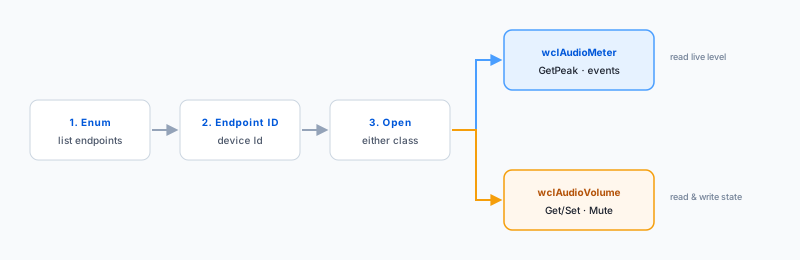
From there, the meter does its one job. GetPeak returns the instantaneous peak on a 0.0–1.0 scale, and
level-change events keep the UI current without polling. The volume class handles the other side: GetVolume
reads the current scalar, SetVolume writes a new one, GetMute reports the state, and
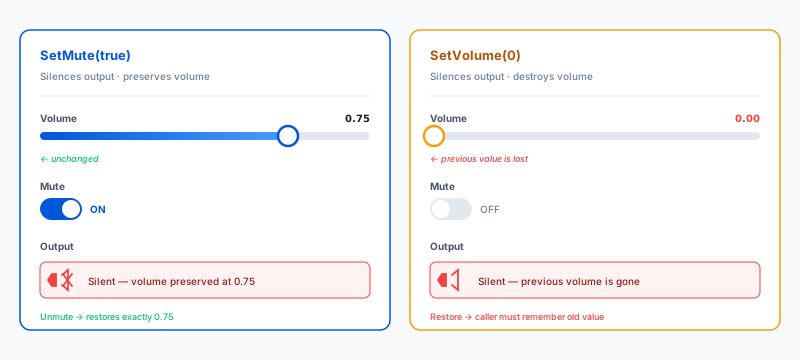
SetMute toggles it. Mute is deliberately independent of the volume scalar — SetMute(true) silences
the output without touching the stored level, so unmuting restores exactly what was there before. No guessing, no drift.
Enumeration deserves a note of its own. The audio endpoints in a Windows system change constantly — a USB headset is plugged in, a Bluetooth device connects, a monitor wakes up and exposes its HDMI audio output. Each change produces a new endpoint with a new ID, and endpoints that disappear are removed from the list. The switcher handles that churn, and the volume and meter classes simply use whatever ID the application has decided to work with. If the endpoint disappears mid-operation, the class reports the condition and the application can re-enumerate to find the new one.
The state filter passed to Enum is what determines which endpoints appear in the results. Active endpoints are
the ones currently available for playback or recording. Unplugged endpoints are the ones Windows remembers but cannot
currently route audio to — typically paired Bluetooth devices that are out of range. For volume and metering, the usual
choice is Active, because a device that is not currently connected has no meaningful level to report. The application
still needs the endpoint's ID ahead of time, which means the enumeration step typically happens once and the result is
cached, or re-run whenever a device change notification arrives.
Getting it right
A few patterns make the difference between an application that uses these classes correctly and one that fights them. The first is to cache the endpoint ID after enumeration rather than re-enumerating on every operation. Enumeration is cheap, but it produces a fresh list each time, and the volume and meter classes care about the specific endpoint the application intends to control — not whatever happens to be first in the list when the call runs.
The second is to treat the meter's events as the primary source of level updates, and GetPeak as a
convenience for one-shot readings. Polling GetPeak in a tight loop works, but it misses the point of the
event model and tends to produce UIs that flicker instead of glide. Subscribing to the events and throttling the UI
update on the application side produces a much better result with no extra effort at the API level.
The third is to accept that the volume and mute state can change without the application's involvement. A user pressing the hardware buttons on a headset will change the endpoint's volume, and a system-wide mute triggered by another application will flip the mute state. Applications that cache the values and only write them will eventually show stale information. Reading the current state before displaying a UI, or subscribing to the relevant change notifications, keeps the display honest.
The fourth is to remember that mute and volume are independent. An application that wants a "mute" button to remember the
previous volume should read the current value, call SetMute(true), and on unmute call SetMute(false)
— the volume scalar was never touched, so the previous level is still in place. An application that wants mute to
permanently lower the volume should instead call SetVolume(0), which is a different operation with different
consequences. The two are not interchangeable, and the framework makes the distinction explicit.
Using the classes
The example below opens an audio endpoint, reads its peak level, and adjusts the master volume and mute state.
var
  Meter: TwclAudioMeter;
  Volume: TwclAudioVolume;
  Peak: Single;
begin
  Meter := TwclAudioMeter.Create(nil);
  Volume := TwclAudioVolume.Create(nil);

  Meter.Open(EndpointId);
  Volume.Open(EndpointId);

  // Get peak audio level:
  Meter.GetPeak(Peak);
  ShowMessage('Current peak: ' + FloatToStr(Peak));

  // Adjust master volume (0.0 to 1.0):
  Volume.SetVolume(0.75);

  // Mute / unmute:
  Volume.SetMute(True);

  Volume.Close;
  Meter.Close;
  Volume.Free;
  Meter.Free;
end;
TwclAudioMeter* Meter = new TwclAudioMeter(NULL);
TwclAudioVolume* Volume = new TwclAudioVolume(NULL);
Meter->Open(EndpointId);
Volume->Open(EndpointId);
float Peak;
Meter->GetPeak(Peak);
ShowMessage("Current peak: " + FloatToStr(Peak));
Volume->SetVolume(0.75);
Volume->SetMute(true);
Volume->Close();
Meter->Close();
delete Volume;
delete Meter;wclAudioMeter Meter = new wclAudioMeter();
wclAudioVolume Volume = new wclAudioVolume();
Meter.Open(EndpointId);
Volume.Open(EndpointId);
float Peak;
Meter.GetPeak(out Peak);
MessageBox.Show("Current peak: " + Peak.ToString());
Volume.SetVolume(0.75f);
Volume.SetMute(true);
Volume.Close();
Meter.Close();Dim Meter As New wclAudioMeter()
Dim Volume As New wclAudioVolume()
Meter.Open(EndpointId)
Volume.Open(EndpointId)
Dim Peak As Single
Meter.GetPeak(Peak)
MessageBox.Show("Current peak: " & Peak.ToString())
Volume.SetVolume(0.75F)
Volume.SetMute(True)
Volume.Close()
Meter.Close()CwclAudioMeter Meter;
CwclAudioVolume Volume;
Meter.Open(EndpointId);
Volume.Open(EndpointId);
float Peak;
Meter.GetPeak(Peak);
AfxMessageBox(CString("Current peak: ")
+ FloatToStr(Peak));
Volume.SetVolume(0.75f);
Volume.SetMute(true);
Volume.Close();
Meter.Close();Frequently asked questions
- How do I get the endpoint ID for wclAudioMeter or wclAudioVolume?
- Use the
wclAudioSwitcher.Enummethod to enumerate the available audio endpoints, then take theIdproperty of the target device and pass it to theOpenmethod ofwclAudioMeterorwclAudioVolume. The same ID works for both classes. - What is the volume range in wclAudioVolume?
- Volume is a linear scalar from 0.0 (silent) to 1.0 (maximum). The value maps to the endpoint's master volume channel. Most applications display it as a percentage by multiplying by 100.
- Can I read the current volume, or only set it?
- Both.
GetVolumereads the current scalar from the endpoint, andSetVolumewrites a new value. The same applies to mute:GetMutereads the current state,SetMutetoggles it. - How can I monitor the audio level in real time?
wclAudioMeteremits level-change events and exposesGetPeakfor the instantaneous peak level. Use the events to drive a live UI andGetPeakfor on-demand sampling; both report the same 0.0–1.0 scale.- Does SetMute change the volume value?
- No. Mute is an independent boolean toggle.
SetMute(true)silences the output without changing the volume scalar, so unmuting restores the previous level. Applications typically render mute as a separate control from the volume slider. - Do these classes work on any endpoint, or only Bluetooth devices?
- Any audio endpoint — Bluetooth, USB, HDMI, or internal — works with
wclAudioMeterandwclAudioVolume. The API is the same; only the endpoint ID differs. Bluetooth endpoints are simply the most common case where applications want per-device volume control.