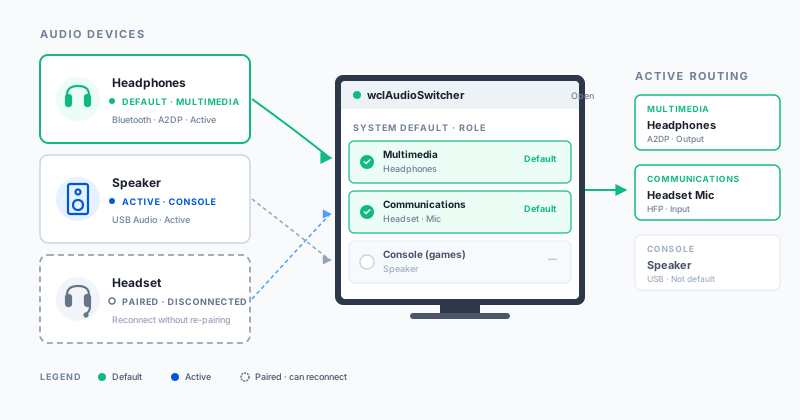
Part of the Bluetooth Audio guide.
Changing the default audio device on Windows is one of those tasks that looks trivial from the outside and turns out to be a minefield from the inside. The relevant APIs are undocumented, they vary between Windows versions, and what little public guidance exists tends to stop at the point where the real problems begin. For Bluetooth audio devices, the situation is even worse: once a device has been paired, Windows offers no clean way to reconnect to it without going through the Add Device dialog — which triggers the pairing flow all over again.
The wclAudioSwitcher class changes that. It enumerates every audio endpoint on the system, lets the application
pick a default for each role (Console, Multimedia, Communications), reconnects to already paired Bluetooth devices without
re-pairing, and disconnects a specific service of a device without removing the pairing. The same object model covers
USB headsets, HDMI outputs, and internal audio devices — Bluetooth is simply the most interesting case, not the only one.
What makes the switcher genuinely useful is that it exposes the whole audio-routing model as a small set of methods on a single class. The application enumerates once, filters the result, and then either sets a default or manages a connection. There is no COM ceremony, no version-specific branching, no guesswork about which endpoint will disappear when a device reconnects. The class hides all of that behind a handful of properties and two or three methods.
The result is that an application can finally do what users have been asking for since Bluetooth audio became common: choose where the sound goes, keep it there, and bring the device back when it drops — all from the application's own UI, without ever sending the user to the Windows sound settings dialog.
What it's good for
Anywhere an application needs to control where audio goes, the switcher earns its keep. A kiosk or POS system can route
customer announcements to one output and operator prompts to a headset, switching between them as the session changes,
without asking the operator to open the Windows sound settings. A streaming or broadcasting tool can reconfigure routing as
a scene change — headphones for monitoring, speakers for the room, a USB interface for the recording feed — and each scene
is just a pair of SetDefault calls. A VoIP or conferencing app can keep communications on a Bluetooth headset
while multimedia plays on the room's speakers, because Windows tracks the two roles separately and the switcher exposes
each role independently.
QA teams use the switcher to automate the full lifecycle of a Bluetooth headset: switch the default, force a disconnect, confirm that the app handles the drop gracefully, reconnect without re-pairing, and repeat. What used to be a manual dance through the Windows UI becomes a script, and what used to be a source of flaky test runs becomes a reproducible sequence. The same pattern works for driver vendors validating firmware revisions and for hardware manufacturers checking that a new product behaves the way the spec says it should.
Shared workstations get a different benefit. When several people use the same machine, each with their own paired devices, the application can reassign the default on login or on session start, matching each user's devices without any manual intervention. And headset management utilities — the small tools that let users mute the microphone while keeping the audio output alive — rely on the switcher's selective disconnect to drop only the HFP service and leave A2DP untouched.
The common thread across all of these scenarios is that the application gets to decide where audio goes, and it gets to decide without asking permission from the user or from the Windows UI. There is no Add Device dialog, no unpair-and-re-pair dance, no need to open the sound settings at all. The switcher puts the routing decisions back where they belong: in the application that actually knows what the user is trying to do.
Why Windows makes this hard
The Windows audio stack is genuinely capable, but its public surface has never been designed for applications that want to manage routing directly. The core APIs — IMMDeviceEnumerator, IAudioEndpointVolume, the various property stores — are documented enough to be usable, but only just. The pieces an application actually needs to do real work are scattered across COM interfaces with reference-counted lifetimes, and the patterns that make them work reliably are not the ones a newcomer would guess.
Bluetooth makes it worse. Pairing a Bluetooth audio device is well-supported: the Add Device dialog handles it, the device appears in the system, and everything works. But the moment the device disconnects — a headset going out of range, a speaker being turned off, a laptop suspending and resuming — Windows offers no user-facing way to bring it back. The Add Device dialog is designed for pairing, not for reconnecting, and the system provides no equivalent of a "Connect" button for an already-paired device.
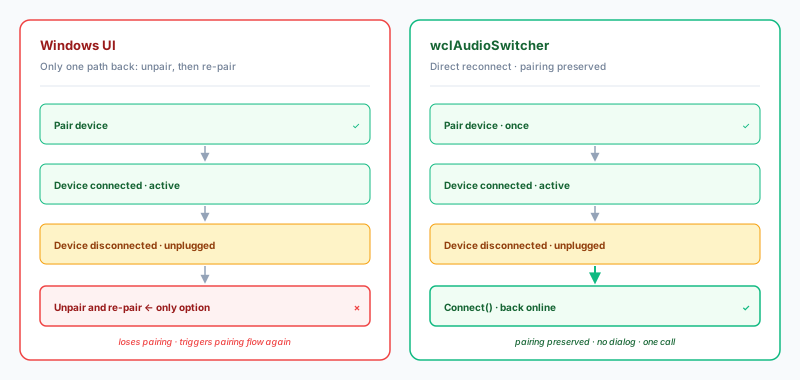
What users end up doing is the only thing the UI allows: unpair the device, then pair it again. This works, but it costs the user their device nickname, their per-device settings, and any application-level state tied to the pairing. It also triggers the full pairing flow, which is slow and, for some devices, requires physical interaction with the headset. For a device that drops occasionally, the cost is annoying. For a device that drops often, the cost is unacceptable.
The selective-disconnect problem is the flip side of the same coin. When a two-in-one headset is connected, Windows exposes it as two separate services — A2DP for audio output, HFP or HSP for the microphone. There are legitimate reasons to want only one of them at a time: a user might want to keep listening to music while muting the microphone, or keep the microphone active while routing audio to better speakers. But the Windows UI has no concept of per-service control. The only way to disconnect anything is to remove the device, which drops both services and loses the pairing.
None of this is a mystery to anyone who has built a Windows audio application. The APIs are what they are, and the platform has been consistent about them for a long time. What the switcher offers is a way to get past the platform's limitations without having to reimplement the platform. The class sits between the application and the Windows audio stack, presents a coherent model of endpoints and roles, and provides the two capabilities the platform does not: reconnect without re-pairing, and selective disconnect without unpairing.
Inside the workflow
The workflow starts with Open, which connects the switcher to the Windows audio service and prepares it for
enumeration and role changes. From there, Enum produces a list of endpoints matching the requested state
filter. The usual choice is asActive for devices that are currently available, and asUnplugged for
paired-but-disconnected Bluetooth devices that the application wants to bring back online. Each returned item is an
wclAudioDevice with all of its properties populated.
The properties themselves are worth understanding, because they are what the application filters on. Id is
the system identifier — the value passed to SetDefault and to the volume and meter classes. FriendlyName
and Description are what the user sees. Flow distinguishes Render (output) from Capture (input).
Roles reports which default roles the device currently serves. State reports whether the endpoint
is Active, Disabled, Not Present, or Unplugged — and the Unplugged state is precisely what makes it possible to find a
paired Bluetooth device that is currently disconnected. For Bluetooth devices, MAC and Service are
also populated: the MAC address identifies the physical device, and the Service UUID distinguishes the A2DP audio service
from the HFP/HSP microphone services on a two-in-one headset.
With the list in hand, the application filters to the device it cares about — usually by MAC address or friendly name — and
then takes one of three actions. For a device that should become the default for a role, SetDefault with the
role and the device ID is all that is needed; repeat per role if the application wants different defaults for Multimedia,
Communications, and Console. For a paired Bluetooth device that is currently disconnected, Connect brings it
back online without touching the pairing. For a specific service that should be dropped without affecting the others,
the switcher provides a way to disconnect just that service.
The role model is worth pausing on, because it is what makes the switcher more than a glorified "set default" API. Windows tracks three separate defaults — Console (games), Multimedia (media players and most apps), and Communications (VoIP and conferencing). A device can be the default for one role and not the others, which is exactly what enables workflows like "calls on the headset, music on the speakers." The switcher exposes each role independently, so an application can build routing scenes, restore previous configurations, and switch between profiles without re-querying the system each time.
The whole workflow fits comfortably inside a screen of code. Enumerate, filter, act — three steps, each a method call, each with clear semantics. There is no hidden state to manage, no COM lifetimes to babysit, and no version-specific branching. The switcher takes care of the platform details, and the application gets to focus on the decisions that actually matter.
Reconnecting without re-pairing
The reconnect scenario is the one users have complained about for as long as Bluetooth audio has existed. A paired headset goes out of range, or the user turns it off, or the machine suspends and resumes. When the headset comes back, Windows shows it in the device list — but greyed out, or simply not connected, with no obvious way to bring it back online. The only option the UI offers is the Add Device dialog, which is designed for pairing and behaves accordingly.
The wclAudioSwitcher class provides the missing option. After enumerating with the asUnplugged
state filter, the application finds the target device by MAC address or friendly name and calls Connect. The
system connects to the selected device, preserves the pairing, and — if the application wants — sets it as the default
audio device. The whole flow happens inside the application's own UI, without a Windows dialog and without the user having
to re-pair anything.
Under the hood, the class does the same things a well-written audio application would do if it had the right APIs: it locates the endpoint by its MAC address, requests a connection through the Bluetooth stack, waits for the connection to complete, and returns control to the application. The difference is that all of this happens through one method call on one object, instead of through a pile of COM interfaces that most developers never want to touch.
For applications that need to handle reconnection automatically — a conferencing client that wants to switch back to the
headset when it reappears, a monitoring tool that reconnects after a power blip — the switcher also supports event-based
workflows. The application can watch for state changes, decide when to reconnect, and call Connect at the
right moment. The class does not require the application to poll, and it does not force a particular reconnect policy on
the application. It simply provides the capability and leaves the policy to the caller.
Disconnecting without unpairing
The selective-disconnect scenario is less famous than reconnect, but it is just as important for the applications that need it. A two-in-one headset — the kind with a microphone and speakers in a single device — exposes two Bluetooth services to the system: A2DP for high-quality audio output, and HFP or HSP for the microphone. Most of the time the application wants both. But there are legitimate reasons to want only one: a user might want to keep listening to music while muting the microphone, or keep the microphone active for a call while routing audio to better speakers, or silence the microphone during a recording session without disabling the playback path.
The Windows UI offers no way to do this. The only disconnect option is "Remove device," which removes the entire pairing and drops both services at once. To get one service back, the user has to re-pair, and to get both back they have to go through the full pairing flow again.
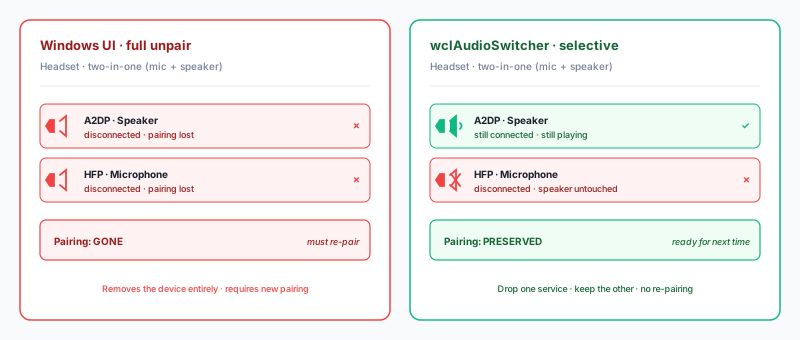
The wclAudioSwitcher class provides the missing capability. After enumerating the paired device, the
application inspects the Service property of each endpoint to distinguish A2DP from HFP/HSP, and then
disconnects only the service it wants to drop. The other service stays connected, the pairing stays intact, and the
device remains visible to the system for future connections. A headset management utility can therefore offer a
"mute microphone" button that actually mutes the microphone — not a "disconnect everything" button that leaves the user
with no audio at all.
The same mechanism supports more elaborate workflows. An application can disconnect the microphone when the user starts a recording, reconnect it when the recording ends, and switch between profiles without ever touching the pairing. A conferencing client can drop A2DP during a call to prioritize HFP bandwidth, and restore A2DP after the call ends. A QA test can verify that the firmware correctly handles service-level disconnects without requiring the pairing to be reset between test runs. All of this is possible because the switcher exposes the service level that the Windows UI hides.
Getting it right
A few patterns make the difference between an application that uses the switcher correctly and one that fights it. The first is to identify devices by MAC address rather than by endpoint ID. The ID assigned to a Bluetooth device can change between connections — Windows sometimes treats a reconnect as a new device — so an application that caches the ID and expects it to remain stable will eventually be disappointed. The MAC address is stable across reconnects and is the right value to persist.
The second is to handle state transitions gracefully. A Bluetooth device moves between Active, Unplugged, Disabled, and
Not Present as the user turns it on, takes it out of range, or plugs in a USB receiver. Each state requires a different
response: Active devices are ready to use, Unplugged devices can be reconnected with Connect, Disabled
devices need the user to enable them through the system, and Not Present devices are effectively gone. Applications that
treat all states the same tend to produce confusing error messages and unhelpful UI.
The third is to re-enumerate after state changes rather than caching the full device list. The audio stack generates new endpoint IDs whenever devices change, and a cached list will slowly drift out of sync with reality. Re-enumeration is cheap — it takes milliseconds — and the switcher is designed to be called repeatedly. Applications that re-enumerate on demand stay accurate without any extra bookkeeping.
The fourth is to be careful with SetDefault on devices that are not currently available. Setting a
disconnected device as the default produces a system state that looks correct but behaves badly: the user sees the device
as the default in the sound settings, but no audio actually comes out because the device is not connected. Applications
should only call SetDefault on devices whose State is Active, or should reconnect the device
first and then set the default. The reconnect-then-set pattern is more work, but it is the only one that produces a
coherent result.
The fifth is to treat role assignment as configuration, not as a one-time action. Users change their audio setup frequently — plugging in a headset, docking a laptop, connecting a Bluetooth speaker — and the defaults that made sense this morning may not make sense this afternoon. Applications that watch for device changes and re-apply their routing preferences stay useful across those changes; applications that set the default once and forget about it slowly drift into states the user did not intend.
Using the switcher
The snippet below opens the switcher, enumerates the active audio devices, and sets a new default device for the multimedia role.
var
  Switcher: TwclAudioSwitcher;
begin
  Switcher := TwclAudioSwitcher.Create(nil);
  try
    Switcher.Open;

    var Devices: TwclAudioDevices;
    Switcher.Enum([asActive], Devices);
    for var Device in Devices do
      Log(Device.FriendlyName);

    Switcher.SetDefault(drMultimedia, Devices[0].Id);
  finally
    Switcher.Close;
    Switcher.Free;
  end;
end;
TwclAudioSwitcher* Switcher = new TwclAudioSwitcher(NULL);
try
{
Switcher->Open();
TwclAudioDevices Devices;
Switcher->Enum(TwclAudioDeviceStates() << asActive,
Devices);
for (int i = 0; i < Devices.Length; i++)
Log(Devices[i].FriendlyName);
Switcher->SetDefault(drMultimedia, Devices[0].Id);
}
__finally
{
Switcher->Close();
delete Switcher;
}wclAudioSwitcher Switcher = new wclAudioSwitcher();
try
{
Switcher.Open();
wclAudioDevice[] Devices;
Switcher.Enum(wclAudioDeviceState.asActive,
out Devices);
foreach (wclAudioDevice Device in Devices)
Log(Device.FriendlyName);
Switcher.SetDefault(
wclAudioDeviceRole.drMultimedia, Devices[0].Id);
}
finally
{
Switcher.Close();
}Dim Switcher As New wclAudioSwitcher()
Try
Switcher.Open()
Dim Devices As wclAudioDevice() = Nothing
Switcher.Enum(wclAudioDeviceState.asActive, Devices)
For Each Device As wclAudioDevice In Devices
Log(Device.FriendlyName)
Next
Switcher.SetDefault(
wclAudioDeviceRole.drMultimedia, Devices(0).Id)
Finally
Switcher.Close()
End TryCwclAudioSwitcher Switcher;
Switcher.Open();
wclAudioDevices Devices;
Switcher.Enum(wclAudioDeviceStates{ asActive }, Devices);
for (auto& Device : Devices)
Log(Device.FriendlyName);
Switcher.SetDefault(drMultimedia, Devices[0].Id);
Switcher.Close();Frequently asked questions
- How to switch the default Bluetooth audio device programmatically?
- Use the
wclAudioSwitcherclass from the Bluetooth Framework to enumerate audio devices and set the default for the multimedia, communications, or gaming role. - How to reconnect to an already paired Bluetooth audio device?
- The Bluetooth Framework provides a unique feature to reconnect to a paired Bluetooth
audio device without using the Windows Add Device dialog or re-pairing. The
AudioSwitchersample demonstrates the flow. - Why can't I reconnect a paired Bluetooth device through the Windows UI?
- Windows only offers the Add Device dialog, which is designed for pairing, not for reconnecting an already-paired device.
Once a device is paired, Windows provides no user-facing way to initiate a new connection without triggering the pairing
flow, which is why users often resort to unpairing and re-pairing. The
wclAudioSwitcherclass bypasses this by reconnecting directly to the paired device. - How do I disconnect only the microphone of a headset, keeping the speaker connected?
- Use the switcher to disconnect the specific service (HFP or HSP for the microphone) without touching the A2DP service
that carries the audio output. The
AudioSwitchersample demonstrates how to disconnect one service of a two-in-one headset while leaving the other service connected. - Does the switcher work with non-Bluetooth audio devices?
- Yes. The switcher enumerates all audio endpoints in the system, not only Bluetooth ones. The Bluetooth-specific properties
(
MACandService) are simply empty for non-Bluetooth devices. The same API can switch between USB headsets, HDMI outputs, and internal audio devices. - What is the difference between Console, Multimedia, and Communications roles?
- Windows assigns a default device for each role separately. Console (games) is used by full-screen games, Multimedia by media players and most applications, and Communications by VoIP and conferencing apps. A device can be default for one role and not another, which is what enables workflows such as routing calls to a headset while music plays on speakers.