The Wi-Fi Framework provides a unified way to read and modify proprietary Wi-Fi
adapter settings — band, power saving, roaming — that are normally inaccessible from code. Use EnumParams,
GetParamValue, GetParamValues, and SetParamValue to enumerate and change parameters
programmatically (administrator rights required).
The WLAN interface advanced parameters collectively control how the wireless network adapter behaves at a very fundamental driver level, going far beyond the basic connection choices found in the Windows settings menu. They are predominantly designed to help you manually navigate a trade-off between raw performance, stable connectivity, and power consumption. For instance, you can dictate which radio bands the adapter should favor and how aggressively it should hunt for a better signal when you move between rooms. Many of the power-saving options work by allowing the adapter to briefly turn off parts of its radio or combine network traffic, which is beneficial for battery life but can often introduce frustrating lag, audio stuttering, or momentary disconnections.
As a result, the most effective use of this menu is often to disable these power-saving features as a first step in troubleshooting an unreliable connection. While the default "Auto" configuration is typically optimal for the average user, understanding these parameters gives you the tools to fix a device that stubbornly clings to a distant network or suffers from unpredictable latency spikes.
What is the problem?
Programmatically changing these advanced WLAN parameters is a significant challenge because they exist below the standard Windows networking layer and are entirely dependent on the proprietary driver installed by the network adapter's manufacturer. There is no universal Application Programming Interface, or API, provided by the Windows operating system that allows a third-party application to directly read or write these specific settings, as each chipset vendor implements their own private interface for their configuration utility to use.
To make matters worse, the names of the parameters, their accepted numerical values, and even the meaning of those values can change completely between different driver versions from the same manufacturer, meaning a setting that works for an Intel adapter will not translate to one from Realtek or Qualcomm. Consequently, there is no single Wi-Fi library or unified software development kit that can reliably perform this task across different hardware, forcing any solution to rely on fragile, reverse-engineered methods for each specific driver type.
This lack of a standard interface turns a seemingly simple task into a maintenance nightmare, as any driver update from the vendor can silently break the custom code, requiring constant patching to maintain compatibility with the vast array of adapters in the market.
How the Wi-Fi Framework helps
The Wi-Fi Framework solves this complex problem by providing a dedicated set of methods that abstract
away the proprietary nature of individual drivers, allowing applications to manage advanced parameters in a uniform and reliable way.
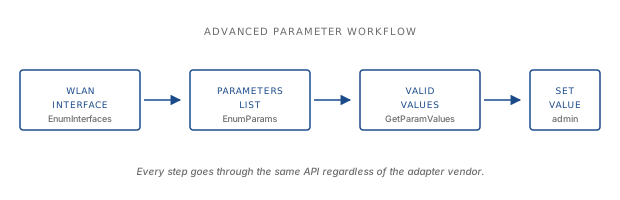
The framework achieves this through a clean interface where the EnumParams method retrieves a complete list of all available
advanced parameters that the installed adapter supports.
Once you have identified a parameter of interest, you can call GetParamValue to read its current configuration state. To
safely modify a setting without guessing at acceptable inputs, the GetParamValues method enumerates all valid options for
that specific parameter, ensuring your application can present a correct list of choices to the user. Finally, the SetParamValue
method (administrator rights required) allows you to programmatically apply the desired change using the exact value format the driver expects.
A particularly powerful and practical use of these methods is the ability to programmatically switch the Wi-Fi band on supported adapters,
a feature that normally requires manually digging through the Windows Device Manager. Many modern adapters expose a parameter that controls
whether the radio operates on the 2.4 GHz, 5 GHz, or 6 GHz band, and changing it on the fly can be a critical operation for applications that
need to optimize for range, speed, or interference avoidance in real time. The Wi-Fi Framework package
includes a sample application called WiFiBand that demonstrates exactly how to use these unique features.
Step 0 — Initialising the Wi-Fi client
Before anything else, you must create a wclWiFiClient instance and call Open. This is the entry point for all
Wi-Fi operations. The snippet below shows the minimal startup code for each language, taken directly from the sample's form-load or
initialization handler.
procedure TfmMain.FormCreate(Sender: TObject);
var
  Res: Integer;
begin
  Res := wclWiFiClient.Open;
  if Res <> WCL_E_SUCCESS then
    ShowMessage('Open failed: 0x' + IntToHex(Res, 8));
end;
void __fastcall TfmMain::FormCreate(TObject *Sender)
{
int Res = wclWiFiClient->Open();
if (Res != WCL_E_SUCCESS)
ShowMessage("Open failed: 0x" + IntToHex(Res, 8));
}private void fmMain_Load(Object sender, EventArgs e)
{
FClient = new wclWiFiClient();
FClient.AfterOpen += new EventHandler(FClient_AfterOpen);
FClient.BeforeClose += new EventHandler(FClient_BeforeClose);
Int32 Res = FClient.Open();
if (Res != wclErrors.WCL_E_SUCCESS)
MessageBox.Show("Open failed: 0x" + Res.ToString("X8"));
}Private Sub fmMain_Load(sender As System.Object, e As System.EventArgs) Handles MyBase.Load
FClient = New wclWiFiClient()
Dim Res As Int32 = FClient.Open()
If Res <> wclErrors.WCL_E_SUCCESS Then
MessageBox.Show("Open failed: 0x" + Res.ToString("X8"))
End SubBOOL CWiFiBandDlg::OnInitDialog()
{
CDialog::OnInitDialog();
// ... icon and control setup ...
FClient = new CwclWiFiClient();
__hook(&CwclWiFiClient::BeforeClose, FClient, &CWiFiBandDlg::WiFiClientBeforeClose);
__hook(&CwclWiFiClient::AfterOpen, FClient, &CWiFiBandDlg::WiFiClientAfterOpen);
int Res = FClient->Open();
if (Res != WCL_E_SUCCESS)
AfxMessageBox(_T("Open failed: 0x") + IntToHex(Res));
return TRUE;
}Step 1 — Discovering Wi-Fi interfaces
Once the client is open, the AfterOpen event fires. There you call EnumInterfaces to get a list of all
adapters, and for each one create a wclWiFiInterface object and open it. Only a successfully opened interface can be used
for parameter operations.
procedure TfmMain.wclWiFiClientAfterOpen(Sender: TObject);
var
  Res: Integer;
  Ifaces: TwclWiFiInterfaces;
  i: Integer;
  Item: TListItem;
  Iface: TwclWiFiInterface;
begin
  Res := wclWiFiClient.EnumInterfaces(Ifaces);
  if Res <> WCL_E_SUCCESS then begin
    ShowMessage('Enum interfaces failed: 0x' + IntToHex(Res, 8));
    wclWiFiClient.Close;
  end else begin
    if Length(Ifaces) = 0 then begin
      ShowMessage('No Wi-Fi interfaces were found.');
      wclWiFiClient.Close;
    end else begin
      for i := 0 to Length(Ifaces) - 1 do begin
        Item := lvInterfaces.Items.Add;
        Item.Caption := GUIDToString(Ifaces[i].Id);

        Iface := TwclWiFiInterface.Create(Ifaces[i].Id);
        Res := Iface.Open;
        if Res <> WCL_E_SUCCESS then begin
          Iface.Free;
          Item.SubItems.Add('Open error: 0x' + IntToHex(Res, 8));
          Item.Data := nil;
        end else begin
          Item.SubItems.Add(Ifaces[i].Description);
          Item.Data := Iface;
        end;
      end;
    end;
  end;
end;
void __fastcall TfmMain::wclWiFiClientAfterOpen(TObject *Sender)
{
TwclWiFiInterfaces Ifaces;
int Res = wclWiFiClient->EnumInterfaces(Ifaces);
if (Res != WCL_E_SUCCESS)
{
ShowMessage("Enum interfaces failed: 0x" + IntToHex(Res, 8));
wclWiFiClient->Close();
}
else
{
if (Ifaces.Length == 0)
{
ShowMessage("No Wi-Fi interfaces were found.");
wclWiFiClient->Close();
}
else
{
for (int i = 0; i < Ifaces.Length; i++)
{
TListItem* Item = lvInterfaces->Items->Add();
Item->Caption = Sysutils::GUIDToString(Ifaces[i].Id);
TwclWiFiInterface* Iface = new TwclWiFiInterface(Ifaces[i].Id);
int Res = Iface->Open();
if (Res != WCL_E_SUCCESS)
{
Iface->Free();
Item->SubItems->Add("Open error: 0x" + IntToHex(Res, 8));
Item->Data = NULL;
}
else
{
Item->SubItems->Add(Ifaces[i].Description);
Item->Data = Iface;
}
}
}
}
}void FClient_AfterOpen(Object sender, EventArgs e)
{
wclWiFiInterfaceData[] Ifaces;
Int32 Res = FClient.EnumInterfaces(out Ifaces);
if (Res != wclErrors.WCL_E_SUCCESS)
{
MessageBox.Show("Enum interfaces failed: 0x" + Res.ToString("X8"));
FClient.Close();
}
else
{
if (Ifaces == null || Ifaces.Length == 0)
{
MessageBox.Show("No Wi-Fi interfaces were found.");
FClient.Close();
}
else
{
foreach (wclWiFiInterfaceData Data in Ifaces)
{
ListViewItem Item = lvInterfaces.Items.Add(Data.Id.ToString());
wclWiFiInterface Iface = new wclWiFiInterface(Data.Id);
Res = Iface.Open();
if (Res != wclErrors.WCL_E_SUCCESS)
{
Item.SubItems.Add("Open error: 0x" + Res.ToString("X8"));
Item.Tag = null;
}
else
{
Item.SubItems.Add(Data.Description);
Item.Tag = Iface;
}
}
}
}
}Private Sub FClient_AfterOpen(sender As Object, e As System.EventArgs) Handles FClient.AfterOpen
Dim Ifaces As wclWiFiInterfaceData() = Nothing
Dim Res As Int32 = FClient.EnumInterfaces(Ifaces)
If Res <> wclErrors.WCL_E_SUCCESS Then
MessageBox.Show("Enum interfaces failed: 0x" + Res.ToString("X8"))
FClient.Close()
Else
If Ifaces Is Nothing Or Ifaces.Length = 0 Then
MessageBox.Show("No Wi-Fi interfaces were found.")
FClient.Close()
Else
For Each Data As wclWiFiInterfaceData In Ifaces
Dim Item As ListViewItem = lvInterfaces.Items.Add(Data.Id.ToString())
Dim Iface As wclWiFiInterface = New wclWiFiInterface(Data.Id)
Res = Iface.Open()
If Res <> wclErrors.WCL_E_SUCCESS Then
Item.SubItems.Add("Open error: 0x" + Res.ToString("X8"))
Item.Tag = Nothing
Else
Item.SubItems.Add(Data.Description)
Item.Tag = Iface
End If
Next
End If
End If
End Subvoid CWiFiBandDlg::WiFiClientAfterOpen(void* Sender)
{
UNREFERENCED_PARAMETER(Sender);
wclWiFiInterfaces Ifaces;
int Res = FClient->EnumInterfaces(Ifaces);
if (Res != WCL_E_SUCCESS)
{
AfxMessageBox(_T("Enum interfaces failed: 0x") + IntToHex(Res));
FClient->Close();
}
else
{
if (Ifaces.size() == 0)
{
AfxMessageBox(_T("No Wi-Fi interfaces were found."));
FClient->Close();
}
else
{
for (wclWiFiInterfaces::iterator Iter = Ifaces.begin(); Iter != Ifaces.end(); Iter++)
{
int Item = lvInterfaces.InsertItem(lvInterfaces.GetItemCount(), GUIDToString(Iter->Id));
CwclWiFiInterface* Iface = new CwclWiFiInterface(Iter->Id);
Res = Iface->Open();
if (Res != WCL_E_SUCCESS)
{
delete Iface;
lvInterfaces.SetItemText(Item, 1, _T("Open error: 0x") + IntToHex(Res));
lvInterfaces.SetItemData(Item, NULL);
}
else
{
lvInterfaces.SetItemText(Item, 1, Iter->Description.c_str());
lvInterfaces.SetItemData(Item, (DWORD_PTR)Iface);
}
}
}
}
}Step 2 — Enumerating advanced parameters
With an open interface, call EnumParams to retrieve every driver-exposed parameter. The same event handler
typically also calls GetParamValue for each parameter to display the current setting.
procedure TfmMain.lvInterfacesSelectItem(Sender: TObject; Item: TListItem; Selected: Boolean);
var
  Res: Integer;
  Params: TwclWiFiInterfaceParameters;
  i: Integer;
  ParamItem: TListItem;
  Value: string;
begin
  lvParams.Items.Clear;

  if lvInterfaces.Selected <> nil then begin
    Res := TwclWiFiInterface(lvInterfaces.Selected.Data).EnumParams(Params);
    if Res <> WCL_E_SUCCESS then
      ShowMessage('Enumerate parameters failed: 0x' + IntToHex(Res, 8))
    else begin
      if Length(Params) > 0 then begin
        for i := 0 to Length(Params) - 1 do begin
          ParamItem := lvParams.Items.Add;
          ParamItem.Caption := Params[i].Name;
          ParamItem.SubItems.Add(Params[i].DisplayName);
          ParamItem.SubItems.Add(Params[i].Default);

          Res := TwclWiFiInterface(lvInterfaces.Selected.Data).GetParamValue(
            Params[i].Name, Value);
          if Res <> WCL_E_SUCCESS then
            Value := 'Error: 0x' + IntToHex(Res, 8);
          ParamItem.SubItems.Add(Value);
        end;
      end;
    end;
  end;
end;
void __fastcall TfmMain::lvInterfacesSelectItem(TObject *Sender,
TListItem *Item, bool Selected)
{
lvParams->Items->Clear();
if (lvInterfaces->Selected != NULL)
{
TwclWiFiInterfaceParameters Params;
int Res = ((TwclWiFiInterface*)(lvInterfaces->Selected->Data))->EnumParams(Params);
if (Res != WCL_E_SUCCESS)
ShowMessage("Enumerate parameters failed: 0x" + IntToHex(Res, 8));
else
{
if (Params.Length > 0)
{
for (int i = 0; i < Params.Length; i++)
{
TListItem* ParamItem = lvParams->Items->Add();
ParamItem->Caption = Params[i].Name;
ParamItem->SubItems->Add(Params[i].DisplayName);
ParamItem->SubItems->Add(Params[i].Default);
String Value;
Res = ((TwclWiFiInterface*)(lvInterfaces->Selected->Data))->GetParamValue(
Params[i].Name, Value);
if (Res != WCL_E_SUCCESS)
Value = "Error: 0x" + IntToHex(Res, 8);
ParamItem->SubItems->Add(Value);
}
}
}
}
}private void lvInterfaces_ItemSelectionChanged(Object sender, ListViewItemSelectionChangedEventArgs e)
{
lvParams.Items.Clear();
if (lvInterfaces.SelectedItems.Count > 0)
{
wclWiFiInterfaceParameter[] Params;
Int32 Res = ((wclWiFiInterface)lvInterfaces.SelectedItems[0].Tag).EnumParams(out Params);
if (Res != wclErrors.WCL_E_SUCCESS)
MessageBox.Show("Enumerate parameters failed: 0x" + Res.ToString("X8"));
else
{
if (Params != null && Params.Length > 0)
{
foreach (wclWiFiInterfaceParameter Param in Params)
{
ListViewItem ParamItem = lvParams.Items.Add(Param.Name);
ParamItem.SubItems.Add(Param.DisplayName);
ParamItem.SubItems.Add(Param.Default);
String Value;
Res = ((wclWiFiInterface)lvInterfaces.SelectedItems[0].Tag).GetParamValue(
Param.Name, out Value);
if (Res != wclErrors.WCL_E_SUCCESS)
Value = "Error: 0x" + Res.ToString("X8");
ParamItem.SubItems.Add(Value);
}
}
}
}
}Private Sub lvInterfaces_ItemSelectionChanged(sender As System.Object,
e As System.Windows.Forms.ListViewItemSelectionChangedEventArgs) Handles lvInterfaces.ItemSelectionChanged
lvParams.Items.Clear()
If lvInterfaces.SelectedItems.Count > 0 Then
Dim Params As wclWiFiInterfaceParameter() = Nothing
Dim Res As Int32 = CType(lvInterfaces.SelectedItems(0).Tag, wclWiFiInterface).EnumParams(Params)
If Res <> wclErrors.WCL_E_SUCCESS Then
MessageBox.Show("Enumerate parameters failed: 0x" + Res.ToString("X8"))
Else
If Params IsNot Nothing And Params.Length > 0 Then
For Each Param As wclWiFiInterfaceParameter In Params
Dim ParamItem As ListViewItem = lvParams.Items.Add(Param.Name)
ParamItem.SubItems.Add(Param.DisplayName)
ParamItem.SubItems.Add(Param.Default)
Dim Value As String = ""
Res = CType(lvInterfaces.SelectedItems(0).Tag, wclWiFiInterface).GetParamValue(
Param.Name, Value)
If Res <> wclErrors.WCL_E_SUCCESS Then Value = "Error: 0x" + Res.ToString("X8")
ParamItem.SubItems.Add(Value)
Next
End If
End If
End If
End Subvoid CWiFiBandDlg::OnLvnItemchangedListWifiInterfaces(NMHDR *pNMHDR, LRESULT *pResult)
{
LPNMLISTVIEW pNMLV = reinterpret_cast<LPNMLISTVIEW>(pNMHDR);
if ((pNMLV->uChanged & LVIF_STATE) && ((pNMLV->uNewState & LVIS_SELECTED) != (pNMLV->uOldState & LVIS_SELECTED)))
{
lvParams.DeleteAllItems();
if ((pNMLV->uNewState & LVIS_SELECTED) != 0)
{
wclWiFiInterfaceParameters Params;
int Res = ((CwclWiFiInterface*)lvInterfaces.GetItemData(pNMLV->iItem))->EnumParams(Params);
if (Res != WCL_E_SUCCESS)
AfxMessageBox(_T("Enumerate parameters failed: 0x") + IntToHex(Res));
else
{
if (Params.size() > 0)
{
for (wclWiFiInterfaceParameters::iterator Iter = Params.begin(); Iter != Params.end(); Iter++)
{
int ParamItem = lvParams.InsertItem(lvParams.GetItemCount(), Iter->Name.c_str());
lvParams.SetItemText(ParamItem, 1, Iter->DisplayName.c_str());
lvParams.SetItemText(ParamItem, 2, Iter->Default.c_str());
tstring Value;
Res = ((CwclWiFiInterface*)lvInterfaces.GetItemData(pNMLV->iItem))->GetParamValue(Iter->Name, Value);
if (Res != WCL_E_SUCCESS)
Value = _T("Error: 0x") + IntToHex(Res);
lvParams.SetItemText(ParamItem, 3, Value.c_str());
}
}
}
}
}
*pResult = 0;
}Step 3 — Retrieving valid values for a parameter
When the user selects a specific parameter, the application must discover its legal values by calling
GetParamValues. This fills a string list that can be directly assigned to a combo box for selection.
procedure TfmMain.lvParamsSelectItem(Sender: TObject; Item: TListItem; Selected: Boolean);
var
  Res: Integer;
  Values: TStringList;
begin
  cbValues.Items.Clear;

  if (lvParams.Selected <> nil) and (lvInterfaces.Selected <> nil) then begin
    Values := TStringList.Create;
    Res := TwclWiFiInterface(lvInterfaces.Selected.Data).GetParamValues(lvParams.Selected.Caption, Values);
    if Res <> WCL_E_SUCCESS then
      ShowMessage('Enum values failed: 0x' + IntToHex(Res, 8))
    else begin
      cbValues.Items.Text := Values.Text;
      cbValues.ItemIndex := cbValues.Items.IndexOf(lvParams.Selected.SubItems[2]);
    end;
    Values.Free;
  end;
end;
void __fastcall TfmMain::lvParamsSelectItem(TObject *Sender, TListItem *Item, bool Selected)
{
cbValues->Items->Clear();
if (lvParams->Selected != NULL && lvInterfaces->Selected != NULL)
{
TStringList* Values = new TStringList();
int Res = ((TwclWiFiInterface*)(lvInterfaces->Selected->Data))->GetParamValues(
lvParams->Selected->Caption, Values);
if (Res != WCL_E_SUCCESS)
ShowMessage("Enum values failed: 0x" + IntToHex(Res, 8));
else
{
cbValues->Items->Text = Values->Text;
cbValues->ItemIndex = cbValues->Items->IndexOf(lvParams->Selected->SubItems->Strings[2]);
}
Values->Free();
}
}private void lvParams_ItemSelectionChanged(Object sender, ListViewItemSelectionChangedEventArgs e)
{
cbValues.Items.Clear();
if (lvParams.SelectedItems.Count > 0 && lvInterfaces.SelectedItems.Count > 0)
{
List<String> Values = new List<String>();
Int32 Res = ((wclWiFiInterface)lvInterfaces.SelectedItems[0].Tag).GetParamValues(
lvParams.SelectedItems[0].Text, Values);
if (Res != wclErrors.WCL_E_SUCCESS)
MessageBox.Show("Enum values failed: 0x" + Res.ToString("X8"));
else
{
foreach (String s in Values)
cbValues.Items.Add(s);
cbValues.SelectedIndex = cbValues.Items.IndexOf(
lvParams.SelectedItems[0].SubItems[3].Text);
}
}
}Private Sub lvParams_ItemSelectionChanged(sender As System.Object,
e As System.Windows.Forms.ListViewItemSelectionChangedEventArgs) Handles lvParams.ItemSelectionChanged
cbValues.Items.Clear()
If lvParams.SelectedItems.Count > 0 And lvInterfaces.SelectedItems.Count > 0 Then
Dim Values As List(Of String) = New List(Of String)()
Dim Res As Int32 = CType(lvInterfaces.SelectedItems(0).Tag, wclWiFiInterface).GetParamValues(
lvParams.SelectedItems(0).Text, Values)
If Res <> wclErrors.WCL_E_SUCCESS Then
MessageBox.Show("Enum values failed: 0x" + Res.ToString("X8"))
Else
For Each s As String In Values
cbValues.Items.Add(s)
Next
cbValues.SelectedIndex = cbValues.Items.IndexOf(lvParams.SelectedItems(0).SubItems(3).Text)
End If
End If
End Subvoid CWiFiBandDlg::OnLvnItemchangedListParams(NMHDR *pNMHDR, LRESULT *pResult)
{
LPNMLISTVIEW pNMLV = reinterpret_cast<LPNMLISTVIEW>(pNMHDR);
if ((pNMLV->uChanged & LVIF_STATE) && ((pNMLV->uNewState & LVIS_SELECTED) != (pNMLV->uOldState & LVIS_SELECTED)))
{
cbValues.ResetContent();
int IfaceSelected = lvInterfaces.GetNextItem(-1, LVNI_SELECTED);
if ((pNMLV->uNewState & LVIS_SELECTED) != 0 && IfaceSelected != -1)
{
std::vector<tstring> Values;
int Res = ((CwclWiFiInterface*)lvInterfaces.GetItemData(IfaceSelected))->GetParamValues(
tstring(lvParams.GetItemText(pNMLV->iItem, 0).GetBuffer()), Values);
if (Res != WCL_E_SUCCESS)
AfxMessageBox(_T("Enum values failed: 0x") + IntToHex(Res));
else
{
for (std::vector<tstring>::iterator Iter = Values.begin(); Iter != Values.end(); Iter++)
cbValues.AddString((*Iter).c_str());
cbValues.SetCurSel(cbValues.FindStringExact(-1, lvParams.GetItemText(pNMLV->iItem, 3)));
}
}
}
*pResult = 0;
}Step 4 — Applying a new value with SetParamValue
Finally, when the user selects a new value and clicks Set Value, SetParamValue is called. After a
successful write, the code immediately reads back the value to confirm the change. Administrator rights are mandatory
for this operation.
procedure TfmMain.btSetValueClick(Sender: TObject);
var
  Res: Integer;
  Value: string;
begin
  if (lvParams.Selected <> nil) and (lvInterfaces.Selected <> nil) then begin
    if cbValues.ItemIndex > -1 then begin
      Res := TwclWiFiInterface(lvInterfaces.Selected.Data).SetParamValue(lvParams.Selected.Caption, cbValues.Text);
      if Res <> WCL_E_SUCCESS then
        ShowMessage('Set value failed: 0x' + IntToHex(Res, 8))
      else begin
        Res := TwclWiFiInterface(lvInterfaces.Selected.Data).GetParamValue(lvParams.Selected.Caption, Value);
        if Res <> WCL_E_SUCCESS then
          Value := 'Error: 0x' + IntToHex(Res, 8);
        lvParams.Selected.SubItems[2] := Value;

        cbValues.ItemIndex := cbValues.Items.IndexOf(Value);
      end;
    end;
  end;
end;
void __fastcall TfmMain::btSetValueClick(TObject *Sender)
{
if (lvParams->Selected != NULL && lvInterfaces->Selected != NULL)
{
if (cbValues->ItemIndex > -1)
{
int Res = ((TwclWiFiInterface*)(lvInterfaces->Selected->Data))->SetParamValue(lvParams->Selected->Caption, cbValues->Text);
if (Res != WCL_E_SUCCESS)
ShowMessage("Set value failed: 0x" + IntToHex(Res, 8));
else
{
String Value;
Res = ((TwclWiFiInterface*)(lvInterfaces->Selected->Data))->GetParamValue(lvParams->Selected->Caption, Value);
if (Res != WCL_E_SUCCESS)
Value = "Error: 0x" + IntToHex(Res, 8);
lvParams->Selected->SubItems->Strings[2] = Value;
cbValues->ItemIndex = cbValues->Items->IndexOf(Value);
}
}
}
}private void btSetValue_Click(Object sender, EventArgs e)
{
if (lvParams.SelectedItems.Count > 0 && lvInterfaces.SelectedItems.Count > 0)
{
if (cbValues.SelectedIndex > -1)
{
Int32 Res = ((wclWiFiInterface)lvInterfaces.SelectedItems[0].Tag).SetParamValue(lvParams.SelectedItems[0].Text, cbValues.Text);
if (Res != wclErrors.WCL_E_SUCCESS)
MessageBox.Show("Set value failed: 0x" + Res.ToString("X8"));
else
{
String Value;
Res = ((wclWiFiInterface)lvInterfaces.SelectedItems[0].Tag).GetParamValue(lvParams.SelectedItems[0].Text, out Value);
if (Res != wclErrors.WCL_E_SUCCESS)
Value = "Error: 0x" + Res.ToString("X8");
lvParams.SelectedItems[0].SubItems[3].Text = Value;
cbValues.SelectedIndex = cbValues.Items.IndexOf(Value);
}
}
}
}Private Sub btSetValue_Click(sender As System.Object, e As System.EventArgs) Handles btSetValue.Click
If lvParams.SelectedItems.Count > 0 And lvInterfaces.SelectedItems.Count > 0 Then
If cbValues.SelectedIndex > -1 Then
Dim Res As Int32 = CType(lvInterfaces.SelectedItems(0).Tag, wclWiFiInterface).SetParamValue(
lvParams.SelectedItems(0).Text, cbValues.Text)
If Res <> wclErrors.WCL_E_SUCCESS Then
MessageBox.Show("Set value failed: 0x" + Res.ToString("X8"))
Else
Dim Value As String = ""
Res = CType(lvInterfaces.SelectedItems(0).Tag, wclWiFiInterface).GetParamValue(
lvParams.SelectedItems(0).Text, Value)
If Res <> wclErrors.WCL_E_SUCCESS Then Value = "Error: 0x" + Res.ToString("X8")
lvParams.SelectedItems(0).SubItems(3).Text = Value
cbValues.SelectedIndex = cbValues.Items.IndexOf(Value)
End If
End If
End If
End Subvoid CWiFiBandDlg::OnBnClickedButtonSetValue()
{
int IfaceSelected = lvInterfaces.GetNextItem(-1, LVNI_SELECTED);
int ParamsSelected = lvParams.GetNextItem(-1, LVNI_SELECTED);
if (IfaceSelected != -1 && ParamsSelected != -1)
{
if (cbValues.GetCurSel() > -1)
{
CString ValueStr;
cbValues.GetLBText(cbValues.GetCurSel(), ValueStr);
int Res = ((CwclWiFiInterface*)lvInterfaces.GetItemData(IfaceSelected))->SetParamValue(
lvParams.GetItemText(ParamsSelected, 0).GetBuffer(), ValueStr.GetBuffer());
if (Res != WCL_E_SUCCESS)
AfxMessageBox(_T("Set value failed: 0x") + IntToHex(Res));
else
{
tstring Value;
Res = ((CwclWiFiInterface*)lvInterfaces.GetItemData(IfaceSelected))->GetParamValue(
lvParams.GetItemText(ParamsSelected, 0).GetBuffer(), Value);
if (Res != WCL_E_SUCCESS)
Value = _T("Error: 0x") + tstring(IntToHex(Res).GetBuffer());
lvParams.SetItemText(ParamsSelected, 3, Value.c_str());
cbValues.SetCurSel(cbValues.FindStringExact(-1, Value.c_str()));
}
}
}
}Frequently asked questions
- What are Wi-Fi interface advanced parameters?
- They are driver-level settings that control how a wireless adapter behaves, including band preference, power saving, roaming aggressiveness, and more. They are vendor-specific and not accessible through standard Windows APIs.
- How can I change the Wi-Fi band programmatically?
- Use the Wi-Fi Framework's
EnumParams,GetParamValues, andSetParamValuemethods. First discover the band-related parameter, enumerate its valid values, then callSetParamValuewith administrator rights.