The Wireless Communication Library's wclPowerEventsMonitor
class tells your application what the operating system is doing with power: whether the machine is running
on AC or battery, how much charge is left, whether the battery is charging or critical, and — most
importantly — when the system is about to suspend or has just resumed. This article walks through the
complete Power Events sample implemented in Delphi, C++ Builder, C#, and VB.NET on Windows, and in C# on
macOS.
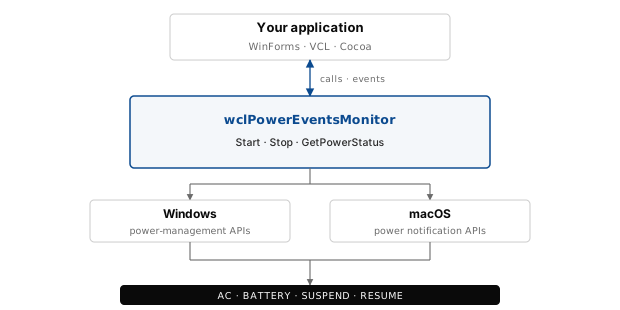
The monitor is a small, self-contained class. It has three jobs: report the current power status on demand, deliver power-state-change events as they happen, and let you start and stop listening at any time. Everything else — the UI, the log, the button handlers — is application code that you are free to adapt.
Unlike a polling loop, the monitor is built on top of the platform's own notification mechanisms: the Windows power-management APIs on one side, and the macOS power-notification facilities on the other. Your code sees the same API, the same event names, and the same status structure on both operating systems.
What is the Power Events Monitor
The wclPowerEventsMonitor class is the entry point for everything related to system power
state in the WCL. It exposes three groups of functionality:
- Status query.
GetPowerStatusfills awclPowerStatusstructure with the current AC line state, battery charge flags, charge percentage, battery-saving state, and estimated remaining and full-charge lifetimes. - Power events.
OnPowerStateChangedfires whenever the OS reports a change: AC status changed, system about to suspend, system resumed, or resumed automatically by the OS.OnStartedandOnStoppedmark the lifecycle of the monitor itself. - Lifecycle control.
StartandStopturn event delivery on and off. Status queries work at any time —Startis only needed if you actually want the events.
Because the monitor is implemented on top of the platform APIs, it behaves identically from your application's point of view on Windows and macOS. Only the UI layer differs: the Windows demos use WinForms and VCL, the macOS demo builds a native Cocoa UI through the Objective-C runtime. The monitor itself is byte-for-byte the same.
Getting started
The sample we are building is a tiny form: three buttons and a list box. The buttons are
Start / Stop (or Open / Close in the Delphi and C++ Builder
projects) and Status / Get state. The list box is where every notification lands.
The essential pieces are the same in every language: create the monitor, subscribe to its events, and
call Start when you are ready.
Creating the monitor
The monitor is created once, in the form's Create / Load handler. All event
subscriptions happen here as well. In VB.NET the subscription is implicit — the form uses
WithEvents and the Handles clause, so only the constructor call is needed.
procedure TfmMain.FormCreate(Sender: TObject);
begin
  FMonitor := TwclPowerEventsMonitor.Create;
  FMonitor.OnPowerStateChanged := PowerStateChanged;
  FMonitor.OnStarted := MonitorStarted;
  FMonitor.OnStopped := MonitorStopped;
end;
void __fastcall TfmMain::FormCreate(TObject *Sender)
{
FMonitor = new TwclPowerEventsMonitor();
FMonitor->OnPowerStateChanged = PowerStateChanged;
FMonitor->OnStarted = MonitorStarted;
FMonitor->OnStopped = MonitorStopped;
}private void fmMain_Load(Object sender, EventArgs e)
{
FMonitor = new wclPowerEventsMonitor();
FMonitor.OnPowerStateChanged += PowerStateChanged;
FMonitor.OnStarted += MonitorStarted;
FMonitor.OnStopped += MonitorStopped;
}Private Sub fmMain_Load(sender As Object, e As EventArgs) Handles MyBase.Load
FMonitor = New wclPowerEventsMonitor()
End SubStarting and stopping
The two buttons call Start and Stop and log any error the monitor returns.
The lifecycle of the monitor is tied to the form: it is stopped and freed in FormDestroy
(Delphi / C++ Builder) or FormClosed (C# / VB.NET). The Delphi and C++ Builder projects
label the buttons Open and Close; the .NET projects use Start and
Stop. The method calls are identical.
procedure TfmMain.btOpenClick(Sender: TObject);
var
  Res: Integer;
begin
  Res := FMonitor.Start;
  if Res <> WCL_E_SUCCESS then
    lbLog.Items.Add('Start failed: 0x' + IntToHex(Res, 8));
end;

procedure TfmMain.btCloseClick(Sender: TObject);
var
  Res: Integer;
begin
  Res := FMonitor.Stop;
  if Res <> WCL_E_SUCCESS then
    lbLog.Items.Add('Stop failed: 0x' + IntToHex(Res, 8));
end;

procedure TfmMain.FormDestroy(Sender: TObject);
begin
  FMonitor.Free;
end;
void __fastcall TfmMain::btOpenClick(TObject *Sender)
{
int Res = FMonitor->Start();
if (Res != WCL_E_SUCCESS)
lbLog->Items->Add("Start failed: 0x" + IntToHex(Res, 8));
}
void __fastcall TfmMain::btCloseClick(TObject *Sender)
{
int Res = FMonitor->Stop();
if (Res != WCL_E_SUCCESS)
lbLog->Items->Add("Stop failed: 0x" + IntToHex(Res, 8));
}
void __fastcall TfmMain::FormDestroy(TObject *Sender)
{
FMonitor->Free();
}private void btStart_Click(Object sender, EventArgs e)
{
Int32 Res = FMonitor.Start();
if (Res != wclErrors.WCL_E_SUCCESS)
lbLog.Items.Add("Start failed: 0x" + Res.ToString("X8"));
}
private void btStop_Click(Object sender, EventArgs e)
{
Int32 Res = FMonitor.Stop();
if (Res != wclErrors.WCL_E_SUCCESS)
lbLog.Items.Add("Stop failed: 0x" + Res.ToString("X8"));
}
private void fmMain_FormClosed(Object sender, FormClosedEventArgs e)
{
FMonitor.Stop();
FMonitor = null;
}Private Sub btStart_Click(sender As Object, e As EventArgs) Handles btStart.Click
Dim Res As Int32 = FMonitor.Start()
If Res <> wclErrors.WCL_E_SUCCESS Then
lbLog.Items.Add("Start failed: 0x" + Res.ToString("X8"))
End If
End Sub
Private Sub btStop_Click(sender As Object, e As EventArgs) Handles btStop.Click
Dim Res As Int32 = FMonitor.Stop()
If Res <> wclErrors.WCL_E_SUCCESS Then
lbLog.Items.Add("Stop failed: 0x" + Res.ToString("X8"))
End If
End Sub
Private Sub fmMain_FormClosed(sender As Object, e As FormClosedEventArgs) Handles MyBase.FormClosed
FMonitor.Stop()
FMonitor = Nothing
End SubPower state events
Three events are available. OnStarted and OnStopped fire when the monitor
begins and ends listening; OnPowerStateChanged fires whenever the OS reports a change.
The latter carries a wclPowerState value:
psPowerStatusChanged— the AC line or battery status changed.psResumeAutomatic— the system resumed without user interaction.psResume— the system resumed because the user woke it.psSuspend— the system is about to suspend.psUnknown— an unknown or unsupported state was reported.
All three events are delivered on the thread that called Start. On Windows this is the UI
thread when you start the monitor from a form handler, so updating controls directly from the event
handlers is safe. On macOS events may arrive on a background thread — see the macOS section below.
procedure TfmMain.PowerStateChanged(Sender: TObject;
  const State: TwclPowerState);
begin
  case State of
    psPowerStatusChanged: lbLog.Items.Add('Power status changed');
    psResumeAutomatic: lbLog.Items.Add('Resumed');
    psResume: lbLog.Items.Add('Resumed by user');
    psSuspend: lbLog.Items.Add('Suspended');
    psUnknown: lbLog.Items.Add('Unknonw');
  end;
end;

procedure TfmMain.MonitorStarted(Sender: TObject);
begin
  lbLog.Items.Add('Monitor started');
end;

procedure TfmMain.MonitorStopped(Sender: TObject);
begin
  lbLog.Items.Add('Monitor stopped');
end;
void __fastcall TfmMain::PowerStateChanged(TObject* Sender,
const TwclPowerState State)
{
switch (State)
{
case psPowerStatusChanged:
lbLog->Items->Add("Power status changed");
break;
case psResumeAutomatic:
lbLog->Items->Add("Resumed");
break;
case psResume:
lbLog->Items->Add("Resumed by user");
break;
case psSuspend:
lbLog->Items->Add("Suspended");
break;
case psUnknown:
lbLog->Items->Add("Unknonw");
break;
}
}
void __fastcall TfmMain::MonitorStarted(TObject* Sender)
{
lbLog->Items->Add("Monitor started");
}
void __fastcall TfmMain::MonitorStopped(TObject* Sender)
{
lbLog->Items->Add("Monitor stopped");
}private void PowerStateChanged(Object Sender, wclPowerState State)
{
switch (State)
{
case wclPowerState.psPowerStatusChanged:
lbLog.Items.Add("Power status changed");
break;
case wclPowerState.psResumeAutomatic:
lbLog.Items.Add("Resumed");
break;
case wclPowerState.psResume:
lbLog.Items.Add("Resumed by user");
break;
case wclPowerState.psSuspend:
lbLog.Items.Add("Suspended");
break;
case wclPowerState.psUnknown:
lbLog.Items.Add("Unknonw");
break;
}
}
private void MonitorStarted(Object Sender, EventArgs e)
{
lbLog.Items.Add("Monitor started");
}
private void MonitorStopped(Object Sender, EventArgs e)
{
lbLog.Items.Add("Monitor stopped");
}Private Sub FMonitor_OnPowerStateChanged(Sender As Object, State As wclPowerState) Handles FMonitor.OnPowerStateChanged
Select Case State
Case wclPowerState.psPowerStatusChanged
lbLog.Items.Add("Power status changed")
Case wclPowerState.psResumeAutomatic
lbLog.Items.Add("Resumed")
Case wclPowerState.psResume
lbLog.Items.Add("Resumed by user")
Case wclPowerState.psSuspend
lbLog.Items.Add("Suspended")
Case wclPowerState.psUnknown
lbLog.Items.Add("Unknonw")
End Select
End Sub
Private Sub FMonitor_OnStarted(sender As Object, e As EventArgs) Handles FMonitor.OnStarted
lbLog.Items.Add("Monitor started")
End Sub
Private Sub FMonitor_OnStopped(sender As Object, e As EventArgs) Handles FMonitor.OnStopped
lbLog.Items.Add("Monitor stopped")
End SubGetting the current power status
GetPowerStatus fills a wclPowerStatus structure and returns
True on success. The structure carries the AC line state, a bitmask of battery charge
flags, the charge percentage, whether battery-saver mode is on, and the estimated remaining and
full-charge lifetimes. When the lifetimes are not available, the platform reports them as
$FFFFFFFF / UInt32.MaxValue — the sample skips printing those values in that
case.
The battery charge status is a flag set, so the sample tests each bit individually: with in
in Delphi, & in C# and VB.NET, and .Contains() in C++ Builder.
procedure TfmMain.btGetStateClick(Sender: TObject);
var
  Status: TwclPowerStatus;
  Str: string;
begin
  if not FMonitor.GetPowerStatus(Status) then
    lbLog.Items.Add('Get status failed')

  else begin
    case Status.ACLineStatus of
      lsOffline: lbLog.Items.Add('AC: Offline');
      lsOnline: lbLog.Items.Add('AC: Online');
      lsBackup: lbLog.Items.Add('AC: Backup');
      lsUnknown: lbLog.Items.Add('AC: Unknown');
    end;

    Str := '[';
    if csCapacityHigh in Status.BatteryChargeStatus then
      Str := Str + ' csCapacityHigh';
    if csCapacityLow in Status.BatteryChargeStatus then
      Str := Str + ' csCapacityLow';
    if csCapacityCritical in Status.BatteryChargeStatus then
      Str := Str + ' csCapacityCritical';
    if csCharging in Status.BatteryChargeStatus then
      Str := Str + ' csCharging';
    if csNoSystemBattery in Status.BatteryChargeStatus then
      Str := Str + ' csNoSystemBattery';
    Str := Str + ' ]';
    lbLog.Items.Add('Batt: ' + Str);

    lbLog.Items.Add('Batt percent: ' + IntToStr(Status.BatteryLifePercent));

    if Status.BatterySavingState then
      lbLog.Items.Add('Battery saving');

    if Status.BatteryLifeTime <> $FFFFFFFF then
      lbLog.Items.Add('Batt life: ' + IntToStr(Status.BatteryLifeTime));

    if Status.BatteryFullLifeTime <> $FFFFFFFF then
      lbLog.Items.Add('Batt full life: ' + IntToStr(Status.BatteryFullLifeTime));
  end;
end;
void __fastcall TfmMain::btGetStateClick(TObject *Sender)
{
TwclPowerStatus Status;
if (!FMonitor->GetPowerStatus(Status))
{
lbLog->Items->Add("Get status failed");
return;
}
switch (Status.ACLineStatus)
{
case lsOffline:
lbLog->Items->Add("AC: Offline");
break;
case lsOnline:
lbLog->Items->Add("AC: Online");
break;
case lsBackup:
lbLog->Items->Add("AC: Backup");
break;
case lsUnknown:
lbLog->Items->Add("AC: Unknown");
break;
}
String Str = "[";
if (Status.BatteryChargeStatus.Contains(csCapacityHigh))
Str = Str + " csCapacityHigh";
if (Status.BatteryChargeStatus.Contains(csCapacityLow))
Str = Str + " csCapacityLow";
if (Status.BatteryChargeStatus.Contains(csCapacityCritical))
Str = Str + " csCapacityCritical";
if (Status.BatteryChargeStatus.Contains(csCharging))
Str = Str + " csCharging";
if (Status.BatteryChargeStatus.Contains(csNoSystemBattery))
Str = Str + " csNoSystemBattery";
Str = Str + " ]";
lbLog->Items->Add("Batt: " + Str);
lbLog->Items->Add("Batt percent: " + IntToStr(Status.BatteryLifePercent));
if (Status.BatterySavingState)
lbLog->Items->Add("Battery saving");
if (Status.BatteryLifeTime != 0xFFFFFFFF)
lbLog->Items->Add("Batt life: " + IntToStr((int)Status.BatteryLifeTime));
if (Status.BatteryFullLifeTime != 0xFFFFFFFF)
{
lbLog->Items->Add("Batt full life: " +
IntToStr((int)Status.BatteryFullLifeTime));
}
}private void btStatus_Click(Object sender, EventArgs e)
{
wclPowerStatus Status;
if (!FMonitor.GetPowerStatus(out Status))
lbLog.Items.Add("Get status failed");
else
{
switch (Status.ACLineStatus)
{
case wclACLineStatus.lsOffline:
lbLog.Items.Add("AC: Offline");
break;
case wclACLineStatus.lsOnline:
lbLog.Items.Add("AC: Online");
break;
case wclACLineStatus.lsBackup:
lbLog.Items.Add("AC: Backup");
break;
case wclACLineStatus.lsUnknown:
lbLog.Items.Add("AC: Unknown");
break;
}
String Str = "[";
if ((wclBatteryChargeStatus.csCapacityHigh & Status.BatteryChargeStatus) != 0)
Str += " csCapacityHigh";
if ((wclBatteryChargeStatus.csCapacityLow & Status.BatteryChargeStatus) != 0)
Str += " csCapacityLow";
if ((wclBatteryChargeStatus.csCapacityCritical & Status.BatteryChargeStatus) != 0)
Str += " csCapacityCritical";
if ((wclBatteryChargeStatus.csCharging & Status.BatteryChargeStatus) != 0)
Str += " csCharging";
if ((wclBatteryChargeStatus.csNoSystemBattery & Status.BatteryChargeStatus) != 0)
Str += " csNoSystemBattery";
Str += " ]";
lbLog.Items.Add("Batt: " + Str);
lbLog.Items.Add("Batt percent: " + Status.BatteryLifePercent.ToString());
if (Status.BatterySavingState)
lbLog.Items.Add("Battery saving");
if (Status.BatteryLifeTime != UInt32.MaxValue)
lbLog.Items.Add("Batt life: " + Status.BatteryLifeTime.ToString());
if (Status.BatteryFullLifeTime != UInt32.MaxValue)
lbLog.Items.Add("Batt full life: " + Status.BatteryFullLifeTime.ToString());
}
}Private Sub btStatus_Click(sender As Object, e As EventArgs) Handles btStatus.Click
Dim Status As wclPowerStatus
If Not FMonitor.GetPowerStatus(Status) Then
lbLog.Items.Add("Get status failed")
Else
Select Case Status.ACLineStatus
Case wclACLineStatus.lsOffline
lbLog.Items.Add("AC: Offline")
Case wclACLineStatus.lsOnline
lbLog.Items.Add("AC: Online")
Case wclACLineStatus.lsBackup
lbLog.Items.Add("AC: Backup")
Case wclACLineStatus.lsUnknown
lbLog.Items.Add("AC: Unknown")
End Select
Dim Str As String = "["
If (wclBatteryChargeStatus.csCapacityHigh And Status.BatteryChargeStatus) <> 0 Then
Str += " csCapacityHigh"
End If
If (wclBatteryChargeStatus.csCapacityLow And Status.BatteryChargeStatus) <> 0 Then
Str += " csCapacityLow"
End If
If (wclBatteryChargeStatus.csCapacityCritical And Status.BatteryChargeStatus) <> 0 Then
Str += " csCapacityCritical"
End If
If (wclBatteryChargeStatus.csCharging And Status.BatteryChargeStatus) <> 0 Then
Str += " csCharging"
End If
If (wclBatteryChargeStatus.csNoSystemBattery And Status.BatteryChargeStatus) <> 0 Then
Str += " csNoSystemBattery"
End If
Str += " ]"
lbLog.Items.Add("Batt: " + Str)
lbLog.Items.Add("Batt percent: " + Status.BatteryLifePercent.ToString())
If Status.BatterySavingState Then
lbLog.Items.Add("Battery saving")
End If
If Status.BatteryLifeTime <> UInt32.MaxValue Then
lbLog.Items.Add("Batt life: " + Status.BatteryLifeTime.ToString())
End If
If Status.BatteryFullLifeTime <> UInt32.MaxValue Then
lbLog.Items.Add("Batt full life: " + Status.BatteryFullLifeTime.ToString())
End If
End If
End SubCross-platform notes: macOS
The wclPowerEventsMonitor class is fully cross-platform. On macOS the same API reports the
same events and returns the same status structure. The only thing that differs is the UI layer: the
Windows demos use WinForms and VCL, while the macOS demo builds a native Cocoa UI through the
Objective-C runtime — creating NSWindow, NSButton, and
NSScrollView objects directly via objc_msgSend, and registering custom
AppDelegate methods with objc_allocateClassPair /
class_addMethod.
The part that matters for your code is unchanged. Creating the monitor, subscribing to its events, and
calling Start / Stop looks exactly the same as on Windows:
// macOS (C#) — the wclPowerEventsMonitor API is identical to Windows
monitor = new wclPowerEventsMonitor();
monitor.OnStarted += MonitorStarted;
monitor.OnStopped += MonitorStopped;
monitor.OnPowerStateChanged += PowerStateChanged;
The important difference is threading. On macOS the monitor's events may be delivered on a background
thread, so touching AppKit views directly from a handler is unsafe. The sample keeps the monitor
handlers free of any UI work: they only enqueue a message into a ConcurrentQueue. A
repeating NSTimer on the main thread drains the queue every 100 ms and pushes the
accumulated text into an NSTextView:
// Handlers may run on a background thread — only enqueue here
static void PowerStateChanged(object sender, wclPowerState state)
{
    switch (state)
    {
        case wclPowerState.psPowerStatusChanged: AddLog("Power status changed"); break;
        case wclPowerState.psResumeAutomatic:    AddLog("Resumed"); break;
        case wclPowerState.psResume:             AddLog("Resumed by user"); break;
        case wclPowerState.psSuspend:            AddLog("Suspended"); break;
        case wclPowerState.psUnknown:            AddLog("Unknown"); break;
    }
}

static ConcurrentQueue<string> logQueue = new ConcurrentQueue<string>();
static StringBuilder logText = new StringBuilder();

static void AddLog(string message)
{
    logQueue.Enqueue(message);
}

// +[NSTimer scheduledTimerWithTimeInterval:...] fires on the main thread
static void OnTimerFired(IntPtr self, IntPtr cmd, IntPtr timer)
{
    bool changed = false;
    while (logQueue.TryDequeue(out string msg))
    {
        logText.AppendLine(msg);
        changed = true;
    }
    if (changed) SetOutputText(logText.ToString());
}
The same pattern applies when the application terminates: the sample registers
applicationShouldTerminateAfterLastWindowClosed: on the custom delegate, and calls
monitor.Stop() from there before returning YES, so the OS notification handler
is released cleanly.
Frequently asked questions
- Does the Power Events Monitor work on macOS?
- Yes. The
wclPowerEventsMonitorclass is cross-platform. On macOS the same API reports suspend, resume, and power-status-change events, andGetPowerStatusreturns the current AC and battery state. Only the UI layer differs — the macOS demo builds a native Cocoa UI through the Objective-C runtime instead of WinForms. - Which events does
wclPowerEventsMonitorexpose? OnStarted,OnStopped, andOnPowerStateChanged. The last one carries awclPowerStatevalue:psPowerStatusChanged,psResumeAutomatic,psResume,psSuspend, orpsUnknown.- What do the
$FFFFFFFF/UInt32.MaxValuevalues mean for battery life time? - They mean the value is unknown or not available on the current system. The sample simply skips printing the battery life time and the full-charge life time in that case.
- Do I need to call
Start()before reading the power status? - No.
GetPowerStatusworks at any time after the monitor has been created.Start()is only required to receive theOnPowerStateChanged,OnStarted, andOnStoppedevents.