Capture Raw Bluetooth LE Frames

The Bluetooth Framework can turn a cheap CC2540 USB dongle into a full BLE sniffer. It captures raw advertising and connection packets, decodes common PDUs (ADV_IND, CONNECT_IND, etc.), and lets you analyze unknown protocols. Setup only requires replacing the default Cebal driver with WinUSB via Zadig.

When developing Bluetooth software or hardware, you often need to see the raw data communication between your application and a device. While Microsoft provides a Bluetooth Test Platform software for Windows, it offers very limited features and requires expensive hardware. That is where the CC2540 USB dongle comes in. This Bluetooth USB dongle can act as a BLE sniffer, providing an accessible and affordable solution. It is cheap and widely available.

A BLE sniffer (also known as a Bluetooth protocol analyzer) acts as a passive listening device that captures BLE packets sent over the air from various devices within the direct radio range. This is very helpful when you need to debug communication between devices without interfering with and affecting the communication between them. This tool is also very useful when you have a device with an unknown protocol and a mobile application. The sniffer helps to understand the device's protocol and to implement it in your application.

While the CSR dongle comes with its own software for capturing Bluetooth packets, deeper tasks like custom analysis, data logging, and protocol decoding typically require integrating BLE sniffing functionality directly into your application. The Bluetooth Framework provides this capability. The library supports the CC2540 dongle in BLE sniffing mode and includes a class that enables your application to capture all Bluetooth LE communication between devices.


How it works

The first thing you need is a CC2540-based USB Bluetooth dongle. We recommend using the CC2540EMK-USB dongle from Texas Instruments, as it ships with the required firmware pre-installed. However, you can also use any CC2540-based clone from AliExpress or other suppliers. The required firmware is available on the Texas Instruments website.

Drivers installation

Because the dongle uses a proprietary (Cebal) driver by default, you need to change it to WinUSB. This is very easy to do by following the steps below:

  1. Download Zadig.
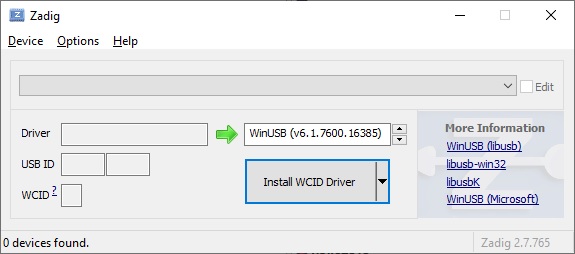
  2. Start the Zadig application.
    Start Zadig
  3. Make sure that the List All Devices menu item is checked in the Options menu.
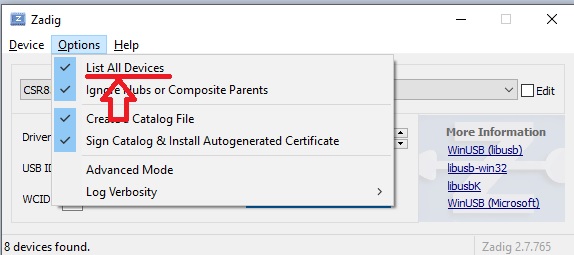
    Zadig List All Devices
  4. Select CC2540 USB Dongle in the drop down list box.
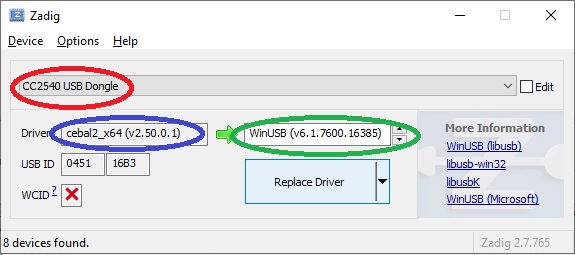
    Zadig Select CC2540
  5. Make sure that the source driver is Cebal.
  6. Make sure that the target driver is WinUSB.
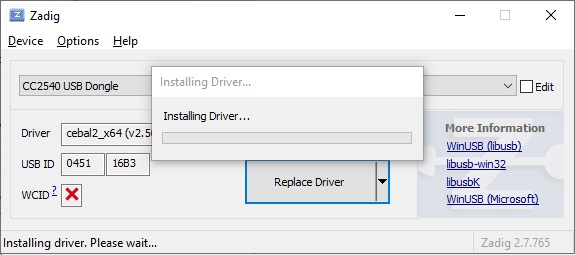
  7. Click the Replace Driver button.
    Zadig Start Installing Driver
  8. Once driver installation finished you will see the The driver was installed successfully message.
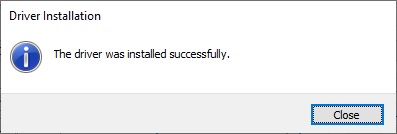
    Zadig Driver Installed

Now all is ready to use the CC2540 USB dongle with the Bluetooth Framework to capture Bluetooth LE communications. To revert the original driver back:

  1. Open the Device Manager.
  2. Find the CC2540 USB Dongle device under the USB Devices node.
  3. Delete the device.
  4. Refresh devices. This re-found the device and installs the original Cebal driver.

Sample application

The Bluetooth Framework includes the BleSniffer sample application, which can be used as a starting point for developing your own Bluetooth LE sniffing application and for testing the Framework's BLE sniffer solution. A BLE sniffer captures packets in two main modes (scenarios):

  • Advertising mode
    The dongle captures advertising packets, mainly on the primary advertising channels (37, 38, 39). In this mode, you can locate a target Bluetooth LE device and select it for capturing its communication.
  • Connection mode
    It captures raw packet data exchanged between two Bluetooth LE devices during a connection (the remaining 37 channels: 0 through 36).

After starting the BleSniffer sample application, you need to provide the advertising channel number, which can be 37, 38, or 39. Once the capture process begins, the application will report all received BLE packets. When a connection request is captured, the wclBleSniffer class automatically follows the channel changes to capture control and data frames. The Bluetooth Framework BLE sniffer can decode the following advertising PDUs:

  • ADV_IND
  • ADV_DIRECT_IND
  • ADV_NONCONN_IND
  • SCAN_REQ
  • SCAN_RSP
  • CONNECT_IND
  • ADV_SCAN_IND

The data PDUs and any other unknown packets are reported as raw byte streams and can be decoded by your application. If you need to add any other PDUs decoding, please contact us, and we will do our best to add the required decoding. Please note that BLE packet capturing produces a high-volume data stream. Process received data frames as quickly as possible. For better performance, consider copying a captured frame and analyzing it in a separate thread. Avoid using asynchronous operations within the capture event handlers.


Using the wclBleSniffer

Starting and Stopping the Sniffer

The wclBleSniffer class needs to be created, its events hooked, and then started with a chosen advertising channel (37, 38, or 39). The following minimal example shows the initialization, start, and stop logic for each language, taken directly from the BleSniffer sample.


procedure TfmMain.btStartClick(Sender: TObject);
var
	Res: Integer;
begin
	Res := wclBleSniffer.Start(cbChannel.ItemIndex + 37);
	if Res <> WCL_E_SUCCESS then
		ShowMessage('Start failed: 0x' + IntToHex(Res, 8));
end;

procedure TfmMain.btStopClick(Sender: TObject);
var
	Res: Integer;
begin
	Res := wclBleSniffer.Stop;
	if Res <> WCL_E_SUCCESS then
		ShowMessage('Stop failed: 0x' + IntToHex(Res, 8));
end;

procedure TfmMain.FormDestroy(Sender: TObject);
begin
	wclBleSniffer.Stop;
end;
                        

void __fastcall TfmMain::btStartClick(TObject *Sender)
{
	int Res = wclBleSniffer->Start(cbChannel->ItemIndex + 37);
	if (Res != WCL_E_SUCCESS)
		ShowMessage("Start failed: 0x" + IntToHex(Res, 8));
}

void __fastcall TfmMain::btStopClick(TObject *Sender)
{
	int Res = wclBleSniffer->Stop();
	if (Res != WCL_E_SUCCESS)
		ShowMessage("Stop failed: 0x" + IntToHex(Res, 8));
}

void __fastcall TfmMain::FormDestroy(TObject *Sender)
{
	wclBleSniffer->Stop();
}
                        

// In form's Load event:
FSniffer = new wclBleSniffer();
FSniffer.OnAdvIndReceived += FSniffer_OnAdvIndReceived;
// ... hook other events similarly ...

private void btStart_Click(Object sender, EventArgs e)
{
	Int32 Res = FSniffer.Start((Byte)(cbChannel.SelectedIndex + 37));
	if (Res != wclErrors.WCL_E_SUCCESS)
		MessageBox.Show("Start failed: 0x" + Res.ToString("X8"));
}

private void btStop_Click(Object sender, EventArgs e)
{
	Int32 Res = FSniffer.Stop();
	if (Res != wclErrors.WCL_E_SUCCESS)
		MessageBox.Show("Stop failed: 0x" + Res.ToString("X8"));
}
                        

' In form's Load event:
FSniffer = New wclBleSniffer()
' Hook events using Handles clauses on the method declarations.

Private Sub btStart_Click(sender As Object, e As EventArgs) Handles btStart.Click
	Dim Res As Int32 = FSniffer.Start(cbChannel.SelectedIndex + 37)
	If Res <> wclErrors.WCL_E_SUCCESS Then
		MessageBox.Show("Start failed: 0x" + Res.ToString("X8"))
	End If
End Sub

Private Sub btStop_Click(sender As Object, e As EventArgs) Handles btStop.Click
	Dim Res As Int32 = FSniffer.Stop()
	If Res <> wclErrors.WCL_E_SUCCESS Then
		MessageBox.Show("Stop failed: 0x" + Res.ToString("X8"))
	End If
End Sub
                        

// In OnInitDialog:
__hook(&CwclBleSniffer::OnAdvIndReceived, &FSniffer, &CBleSnifferDlg::AdvIndReceived);
// ... hook other events ...

void CBleSnifferDlg::OnBnClickedButtonStart()
{
	int Res = FSniffer.Start((const unsigned char)(cbChannel.GetCurSel() + 37));
	if (Res != WCL_E_SUCCESS)
		AfxMessageBox(_T("Start failed: 0x") + IntToHex(Res));
}

void CBleSnifferDlg::OnBnClickedButtonStop()
{
	int Res = FSniffer.Stop();
	if (Res != WCL_E_SUCCESS)
		AfxMessageBox(_T("Stop failed: 0x") + IntToHex(Res));
}


Handling Captured Packets

Each decoded PDU type has a dedicated event handler. The example below shows how to handle the ADV_IND packet - one of the most common advertising PDUs. The same pattern applies to the other six PDU types.


procedure TfmMain.wclBleSnifferAdvIndReceived(Sender: TObject;
	const PduHeader: TwclBluetoothLeAdvertisingPduHeader; const AdvA: Int64;
	const AdvData: Pointer; const AdvDataLen: Byte);
begin
	lbPackets.Items.Add('ADV_IND RECEIVED');
	lbPackets.Items.Add('  AdvA: ' + IntToHex(AdvA, 12));
	DumpPduHeader(PduHeader);
	DumpPayload(AdvData, AdvDataLen);
end;
                        

void __fastcall TfmMain::wclBleSnifferAdvIndReceived(TObject *Sender,
	const TwclBluetoothLeAdvertisingPduHeader &PduHeader,
	const __int64 AdvA, const Pointer AdvData, const BYTE AdvDataLen)
{
	lbPackets->Items->Add("ADV_IND RECEIVED");
	lbPackets->Items->Add("  AdvA: " + IntToHex(AdvA, 12));
	DumpPduHeader(PduHeader);
	DumpPayload(AdvData, AdvDataLen);
}
                        

void FSniffer_OnAdvIndReceived(Object Sender, wclBluetoothLeAdvertisingPduHeader PduHeader, Int64 AdvA, Byte[] AdvData)
{
	lbPackets.Items.Add("ADV_IND RECEIVED");
	lbPackets.Items.Add("  AdvA: " + AdvA.ToString("X12"));
	DumpPduHeader(PduHeader);
	DumpPayload(AdvData);
}
                        

Private Sub FSniffer_OnAdvIndReceived(Sender As Object, PduHeader As wclBluetoothLeAdvertisingPduHeader,
	AdvA As Long, AdvData As Byte()) Handles FSniffer.OnAdvIndReceived

	lbPackets.Items.Add("ADV_IND RECEIVED")
	lbPackets.Items.Add("  AdvA: " + AdvA.ToString("X12"))
	DumpPduHeader(PduHeader)
	DumpPayload(AdvData)
End Sub
                        

void CBleSnifferDlg::AdvIndReceived(void* Sender, const wclBluetoothLeAdvertisingPduHeader& PduHeader,
	const __int64 AdvA, const unsigned char* const AdvData, const unsigned char AdvDataLen)
{
	UNREFERENCED_PARAMETER(Sender);
    
	lbPackets.AddString(_T("ADV_IND RECEIVED"));
	lbPackets.AddString(_T("  AdvA: ") + IntToHex(AdvA));
	DumpPduHeader(PduHeader);
	DumpPayload(AdvData, AdvDataLen);
}
                        

Frequently Asked Questions

What is a BLE sniffer?
A BLE sniffer (Bluetooth protocol analyzer) is a passive listening device that captures BLE packets sent over the air from nearby devices, useful for debugging and protocol reverse engineering.
How do I set up the CC2540 dongle for BLE sniffing?
Replace the default Cebal driver with WinUSB using the Zadig tool. Then the Bluetooth Framework can use the dongle to capture BLE packets.
What capture modes does the BLE sniffer support?
Advertising mode captures packets on primary advertising channels (37, 38, 39). Connection mode captures raw data exchanged during a connection on the remaining 37 channels.